The Network Time Protocol (NTP) is a protocol for synchronizing the clocks of computer systems over packet-switched, variable-latency data networks. NTP uses UDP port 123 as its transport layer. It is designed particularly to resist the effects of variable latency (Jitter).
Using NTP is a great way to keep your system clock set correctly. It works by contacting a number of servers around the world, asking them for the time and then calculating what the correct local time is from their responses.
If you have install ntpdate package before you need to uninstall using the following command
sudo aptitude remove ntpdate
Install NTP server in Ubuntu
sudo aptitude install ntp
This will install all the required packages for NTP.
Configure NTP Server
The configuration file for ntpd is located at /etc/ntp.conf. The default Ubuntu file probably requires some modification for optimal performance.You need to edit the /etc/ntp.conf file using the following command
sudo nano /etc/ntp.conf
do the following changes shown in this example
Example Configuration
You need to add a number of servers to the server list. The Debian default is pool.ntp.org which works but isn’t always amazingly accurate because it makes no attempt to use time servers near you. If you want more accuracy use the time servers either on your continent (for instance europe.pool.ntp.org) or your country (for instance uk.pool.ntp.org) one of your local country servers.The optimal number of servers to listen to is three but two will also give a good accuracy. If your ISP runs a time server for you it is worth including it in your server list as it will often be more accurate than the pooled servers and will help keep the load down on the pool.
I am using the following two servers for my configuration
server ntp0.pipex.net
server ntp1.pipex.net
Restrict the type of access you allow these servers. In this example the servers are not allowed to modify the run-time configuration or query your Linux NTP server.
restrict otherntp.server.org mask 255.255.255.255 nomodify notrap noquery
restrict ntp.research.gov mask 255.255.255.255 nomodify notrap noquery
The mask 255.255.255.255 statement is really a subnet mask limiting access to the single IP address of the remote NTP servers.
If this server is also going to provide time for other computers, such as PCs, other Linux servers and networking devices, then you’ll have to define the networks from which this server will accept NTP synchronization requests. You do so with a modified restrict statement removing the noquery keyword to allow the network to query your NTP server. The syntax is:
restrict 192.168.1.0 mask 255.255.255.0 nomodify notrap
In this case the mask statement has been expanded to include all 255 possible IP addresses on the local network.
We also want to make sure that localhost (the universal IP address used to refer to a Linux server itself) has full access without any restricting keywords
restrict 127.0.0.1
Save the file and exit
Now you need to restart NTP server for these settings to take effect using the following command
sudo /etc/init.d/ntp restart
Determining If NTP Is Synchronized Properly
Use the ntpq command to see the servers with which you are synchronized. It provided you with a list of configured time servers and the delay, offset and jitter that your server is experiencing with them. For correct synchronization, the delay and offset values should be non-zero and the jitter value should be under 100.
sudo ntpq -np
In the output of above command A star by any one of the chosen server names means that the system clock is synchronising with the NTP clock. If you don’t have a star (as in the example above) it means that the clocks are unreachable, already synchronized to this server or has an outrageous synchronization distance. Try running ntpdate (you will need to stop the ntp server) with your first ntp server as an argument. This will set your system clock fairly accuratly and mean that the server will be able to choose a clock to synchronize with.
Firewall Configuration for NTP
NTP servers communicate with one another using UDP with a destination port of 123. Unlike most UDP protocols, the source port isn’t a high port (above 1023), but 123 also. You’ll have to allow UDP traffic on source/destination port 123 between your server and the Stratum 1/2 server with which you are synchronizing.
NTP Linux Client Configuration
If you want to configure ntp client you need to install the following packages
sudo aptitude install ntp ntp-simple ntpdate
Configuring NTP client
You need to edit the /etc/ntp.conf file you need to point the following settings to NTP server ip address
sudo nano /etc/ntp.conf
Server configuration settings
server 192.168.1.1
Restrict the type of access you allow these servers. In this example the servers are not allowed to modify the run-time configuration or query your Linux NTP server.
restrict default notrust nomodify nopeer
Localhost configuration
restrict 192.168.1.1
In this case the mask statement has been expanded to include all 255 possible IP addresses on the local network.
We also want to make sure that localhost (the universal IP address used to refer to a Linux server itself) has full access without any restricting keywords
restrict 127.0.0.1
Now you need to save and exit the file
Run ntpdate command against your server
sudo ntpdate 192.168.1.1
Restart ntp service using the following command
sudo /etc/init.d/ntp restart
Windows Clients Configuration
Windows machines use a simplified version of NTP called Simple Network Time Protocol (SNTP), and can synchronize with NTP servers. In order to synchronize with your new server, double click on the time and go to the “Internet Time” tab. Put the IP address of your server in the “Server” field.
Showing posts with label Linux. Show all posts
Showing posts with label Linux. Show all posts
Friday, April 1, 2011

Sunday, January 30, 2011
Cara Install Ubuntu Di USB Drive
Karena saya kesulitan untuk install ubuntu dari wubi, saya mencoba untuk install ubuntu dengan menggunakan USB Flashdisk, hehe.. Berikut adalah cara menginstal Ubuntu pada USB drive dari Windows. Format USB anda tetap dengan partisi FAT32 dari Windows. Anda bisa mendapatkan ke format dialog dengan membuka My Computer dan mengklik mouse sebelah kanan ikon drive removable. Klik "Format" dan mengikuti pengaturan pada gambar di bawah ini. Anda perlu minimal USB dengan kapasitas 2GB.

Download UNetbootin. UNetbootin memungkinkan untuk instalasi berbagai Linux / Ubuntu distribusi ke sebuah partisi atau USB drive, jadi tidak berbeda dari instalasi standar, hanya saja tidak memerlukan CD. Anda tidak perlu menginstalnya ke Windows maka UNetbootin akan berjalan pada PC Windows Anda tanpa "admin" hak istimewa.
Versi baru Ubuntu tidak dalam daftar Distribusi disertakan oleeh UNetbootin, jadi gunakan file ISO ubuntu yang sudah anda download. Pilih ISO menggunakan "Diskimage", pastikan drive USB anda dipilih seperti di bawah ini dan klik OK.
ISO akan mentransfer ke USB cukup cepat, jadi sesaat setelah Anda mengklik OK, Anda akan melihat layar ini:

Itu saja - ketika proses instalasi selesai, restart komputer dan pastikan itu dibentuk untuk boot dari USB. Biasanya sih tinggal tekan F9, pada layar akan menunjukkan pilihan boot menu. Pemilih "USB Hard Drive" mengikuti layar hitam, logo Ubuntu, dan akhirnya, desktop Ubuntu Anda yang baru muncul.
Menyelesaikan instalasi Ubuntu Anda, Tahap demi Tahap
Instalasi Ubuntu adalah begitu mudah sehingga tidak memerlukan kemampuan khusus melewati tahap ini. Jika Anda telah berhasil memartisi ulang hard drive anda dan restart, Anda akan melalui beberapa langkah berikut:
Klik "install" pada desktop (kiri atas)
Pilih bahasa di layar selamat datang
Pilih lokasi Anda
Pilih layout keyboard Anda
Mengatur partisi disk anda. Ini mungkin yang paling "teknis" diantara tahap instalasi. Ketika saya menciutkan volume drive Windows Vista, saya tidak pernah memformatnya dengan partisi baru, yang berarti "use the largest continuous free space" pilihan bekerja dengan baik:
Pilih username dan password Anda:
Migrate Windows dokumen dan pengaturan
Anda sekarang siap untuk menginstal instalasi Ubuntu baru anda
Ketika instalasi telah selesai, restart komputer Anda (Anda akan diminta untuk menghapus cd rom atau USB drive). Anda sekarang siap untuk mulai menggunakan Ubuntu!

Download UNetbootin. UNetbootin memungkinkan untuk instalasi berbagai Linux / Ubuntu distribusi ke sebuah partisi atau USB drive, jadi tidak berbeda dari instalasi standar, hanya saja tidak memerlukan CD. Anda tidak perlu menginstalnya ke Windows maka UNetbootin akan berjalan pada PC Windows Anda tanpa "admin" hak istimewa.
Versi baru Ubuntu tidak dalam daftar Distribusi disertakan oleeh UNetbootin, jadi gunakan file ISO ubuntu yang sudah anda download. Pilih ISO menggunakan "Diskimage", pastikan drive USB anda dipilih seperti di bawah ini dan klik OK.
ISO akan mentransfer ke USB cukup cepat, jadi sesaat setelah Anda mengklik OK, Anda akan melihat layar ini:

Itu saja - ketika proses instalasi selesai, restart komputer dan pastikan itu dibentuk untuk boot dari USB. Biasanya sih tinggal tekan F9, pada layar akan menunjukkan pilihan boot menu. Pemilih "USB Hard Drive" mengikuti layar hitam, logo Ubuntu, dan akhirnya, desktop Ubuntu Anda yang baru muncul.
Menyelesaikan instalasi Ubuntu Anda, Tahap demi Tahap
Instalasi Ubuntu adalah begitu mudah sehingga tidak memerlukan kemampuan khusus melewati tahap ini. Jika Anda telah berhasil memartisi ulang hard drive anda dan restart, Anda akan melalui beberapa langkah berikut:
Klik "install" pada desktop (kiri atas)
Pilih bahasa di layar selamat datang
Pilih lokasi Anda
Pilih layout keyboard Anda
Mengatur partisi disk anda. Ini mungkin yang paling "teknis" diantara tahap instalasi. Ketika saya menciutkan volume drive Windows Vista, saya tidak pernah memformatnya dengan partisi baru, yang berarti "use the largest continuous free space" pilihan bekerja dengan baik:
Pilih username dan password Anda:
Migrate Windows dokumen dan pengaturan
Anda sekarang siap untuk menginstal instalasi Ubuntu baru anda
Ketika instalasi telah selesai, restart komputer Anda (Anda akan diminta untuk menghapus cd rom atau USB drive). Anda sekarang siap untuk mulai menggunakan Ubuntu!
Saturday, December 18, 2010
Ubuntu Release 10.10
Free apps, safe and fast web browsing, a dedicated music store and much more. Ubuntu brings the very best technologies straight to your desktop.
Browse the web
Ubuntu includes Mozilla Firefox – for fast, safe web browsing. You can also choose alternative browsers including Google Chromium from the Ubuntu Software Centre.
Create professional documents and presentations
OpenOffice.org is fully compatible with Microsoft Office and has everything you need to create professional documents, spreadsheets and presentations. OpenOffice.org is easy to use, packed with the features you need and completely free.
Get all the software you need
The Ubuntu Software Centre gives you instant access to thousands of open-source and carefully selected free applications. And now you can buy apps too. Browse software in categories including: education, games, sound and video, graphics, programming and office. All the applications are easy to find, easy to install and easy to buy.
Featured applications from the Ubuntu Software Centre:
Email and chat
Get chatting with Empathy. Quickly integrate your chat accounts from Yahoo, Gmail, MSN, Jabber, AOL, QQ and many more. Evolution Mail provides easy, intuitive email.
Social from the start
Ubuntu's new Me Menu lets you access your Facebook and Twitter accounts straight from the desktop. You can connect to all your favourite chat channels and make updates through a single window. Being connected for work or fun has never been so easy.
Music streaming to your phone
New in 10.10. Ubuntu's music player includes an integrated store, so you can buy and download new tracks with just a few clicks. And thanks to Ubuntu One's file-syncing magic you can stream your music uninterrupted to your Android device or iPhone.
Photo magic
Ubuntu is chock full of apps to help you manage, fix and share your photos with the world, whatever gadget you use to take them. Support for cameras and phones is legendary and all without drivers. And Shotwell allows you to manage and share your pictures easily - on all the most popular photo and social network sites. And did we mention the apps are free?
Discover Ubuntu One
Ubuntu One is the personal cloud service that simplifies your digital life. Imagine buying music and getting it delivered to the computers of your choice. Or synchronising your files and notes and accessing them from anywhere. Or consolidating your computer and mobile phone contacts and safely sharing documents and pictures with them. Ubuntu One does all this and more.
Make, play and edit video
Watch all your favourite content from YouTube, iPlayer, and MSN Player. Play your own videos with Movie Player or use Pitivi to edit your videos.
Browse the web
Ubuntu includes Mozilla Firefox – for fast, safe web browsing. You can also choose alternative browsers including Google Chromium from the Ubuntu Software Centre.
Create professional documents and presentations
OpenOffice.org is fully compatible with Microsoft Office and has everything you need to create professional documents, spreadsheets and presentations. OpenOffice.org is easy to use, packed with the features you need and completely free.
Get all the software you need
The Ubuntu Software Centre gives you instant access to thousands of open-source and carefully selected free applications. And now you can buy apps too. Browse software in categories including: education, games, sound and video, graphics, programming and office. All the applications are easy to find, easy to install and easy to buy.
Featured applications from the Ubuntu Software Centre:
- Blender – the world renowned tool for creating 3d artwork, animations and games.
- Frozen Bubble – Play solo or join you friends in this addictive game as you try to burst the bubbles before they reach the bottom.
- Cheese! – Have fun with your web cam. Use this simple app to take pictures, create special effects and share your photos with your friends.
Email and chat
Get chatting with Empathy. Quickly integrate your chat accounts from Yahoo, Gmail, MSN, Jabber, AOL, QQ and many more. Evolution Mail provides easy, intuitive email.
Social from the start
Ubuntu's new Me Menu lets you access your Facebook and Twitter accounts straight from the desktop. You can connect to all your favourite chat channels and make updates through a single window. Being connected for work or fun has never been so easy.
Music streaming to your phone
New in 10.10. Ubuntu's music player includes an integrated store, so you can buy and download new tracks with just a few clicks. And thanks to Ubuntu One's file-syncing magic you can stream your music uninterrupted to your Android device or iPhone.
Photo magic
Ubuntu is chock full of apps to help you manage, fix and share your photos with the world, whatever gadget you use to take them. Support for cameras and phones is legendary and all without drivers. And Shotwell allows you to manage and share your pictures easily - on all the most popular photo and social network sites. And did we mention the apps are free?
Discover Ubuntu One
Ubuntu One is the personal cloud service that simplifies your digital life. Imagine buying music and getting it delivered to the computers of your choice. Or synchronising your files and notes and accessing them from anywhere. Or consolidating your computer and mobile phone contacts and safely sharing documents and pictures with them. Ubuntu One does all this and more.
Make, play and edit video
Watch all your favourite content from YouTube, iPlayer, and MSN Player. Play your own videos with Movie Player or use Pitivi to edit your videos.
Thursday, December 16, 2010
Membuat Billing Hotspot Menggunakan Chillispot, Radius phpmyprepait
Perpaduan Chillispot, Freeradius dan Mysql dapat menghasilkan aplikasi Hotspot lumayan handal. Chillispot sebagai Authentifikasi, Freeradius untuk account phpmyprepait sebagai billingnya dan Mysql untuk databasenya.
Sebagai uji coba saya akan menjelaskan bagaimana cara membuat Wi-Fi Hotspot terserbut :
A. Yang dibutuhkan :
1. Hotspot Access Point device, dalam hal ini saya menggunakan Linksys Tipe 54 GL AP bisa di gunakan AP Tipe apa saja.
2. Sebuah komputer yang akan di jadikan sebagai radius server.
3. OS GNU/Linux, Saya menggunakan OpenSUSE (10.2), Ubuntu, Slackware (dijelaskan)
4. Mysql, untuk Authentic melalui database, untuk authentic nya bisa dengan beberapa cara seperti : unix user, smb user, file user
5. Apache dengan perl support, untuk membuat user authentic melalui web-based, serta utk membuat login authentic via web-based di cgi-bin/hotspotlogin.cgi
6. Chillispot, sistem kerja software ini adalah apabila user belum mendapatkan authentic dari server maka ia akan ter-redirect ke halaman login
7. Freeradius, ini berfungsi sebagai pemberi authentifikasi kepada user
8. PhpMyPrepaid, bila anda menggukan authentic melalui database Mysql, bisa juga sebagai pembuat user prepaid untuk billingnya
9. Rokok, satu batang biar cepat selesai nginstallnya
10. Kopi, biar kuat begadang. atau susu putih ajah, gak usah pake gula, biar segerrrrrrr. menulis ini aja perlu Sopi Susu
B. Cara Install :
Untuk OS tergantung dari distro apa yang anda pakai, bisa memakai distro keluaran dari SUSE (OpenSUSE 10.2-10.3). Saya hanya akan menjelaskan cara meng-install-nya dengan cara Distro OpenSUSE, Ubuntu Slackware dan untuk yang lain itu tergantung distro apa yang anda pilih dan nantinya di bagian konfigurasi akan di samakan untuk beberapa distro di atas.
Install mysql
Install Apache
Download chillispot; lalu install rpm -ivh chillispot-1.0.i386.rpm (Keluarga RPM) silahkan di sesuaikan sesuai keluarganya masing-masing (jika menggunakan Chilli di PC).
Install Freeradius
Setelah kita mengintsall Apache dan Mysql lalu kita dapat men-download phpmyprepait;
extract ke /srv/www/htdocs
Sambil menginstall semua jgn lupa ambil rokok dan di nyalakan.
Jangan lupa untuk menyeduh kopi atau susunya.
C. Configurasi :
1. Saya mengeset Wi-Fi Hostpot (Linksys WRT 54GL) sebagai Access Point. Kemudian Linksys tersebut di upgrede ke OpenWRT dan install Chillispot di dalam Linsys WRT 54GL tersebut. setelah selesai melakukan konfigurasi
# nvram set wan_device=eth0
Paket yang di perlukan dalam linksys yaitu :
nvram set lan_proto=static
nvram set lan_ipaddr=192.168.10.254
nvram set lan_netmask=255.255.255.0
- seting wan/internet
nvram set wan_proto=static nvram set wan_ipaddr=XX.XX.XX.XX (berikan ip local)
nvram set wan_netmask=255.255.255.0
nvram set wan_gateway=XX.XX.XX.XX
nvram set wan_dns=”diisi” Biarkan terpasang.
nvram set wan_hostname= (pengguna)
- Seting AP
nvram set wl0_mode=ap
nvram set wl0_ssid=disesuikan
nvram set wl0_auth_mode=open
nvram set wl0_wep=disabled
nvram set wl0_channel=(pilih channel yang cocok)
nvram commit
2. Setelah melukuan flashing dan Install OS nya seperti kebutuhan diatas dan di sesuaikan, pertama kita harus mematikan service dhcpd yang ada di server kita, biarkan chillispot yang menangani dhcp.
3. # pico /etc/chilli.conf isi dari chilli saya (konfigurasi ini bisa di gunakan di Linksys 54GL atau di Komputer PC
##############################################################################
#
# Sample ChilliSpot configuration file @ Fadly Kasim
#
##############################################################################
net 192.168.154.0/24
dynip 192.168.154.0/24
statip 192.168.154.0/24
domain (domain isp anda)
dns1 202.X.X.X (DNS Anda)
dns2 202.X.X.X (DNS Anda)
#Radius parameters
radiusauthport 1812
radiusacctport 1813
radiuslisten 127.0.0.1
radiusserver1 127.0.0.1
radiusserver2 127.0.0.1
radiussecret testing123
#dhcpmac 00:00:5E:00:02:00
dhcpif eth0
uamserver https://192.168.154.1/cgi-bin/hotspotlogin.cgi
###########################################
#Untuk meng allow domain yang bisa di akses
uamallowed www.google.com
##########################################
uamsecret theuamsecret
uamlisten 192.168.154.1
uamallowed 192.168.154.1
uamport 3990
#======Selesai=============#
4. Konfigurasikanlah chilli.conf sesuai kebutuhan anda, disini ada beberapa point penting dalam konfigurasinya, yaitu:
radiussecret, ini dibutuhkan untuk komunikasi antara radius server dan chillispot
uamserver, dimana file hotspotlogin.cgi di simpan. Biasanya di letakkan di /var/www/cgi-bin
dhcpif, di sesuikan ethx yang nantinya di gunakan untuk client
Untuk itu bisa melakukakan copy file hotspotlogin.cgi dari /usr/share/doc/chillispot-1.0/hotspotlogin.cgi ke /var/www/cgi-bin, jadi nanti utk URL redirect nya akan menjadi https://192.168.0.254/cgi-bin/hotspotlogin.cgi (lihat uamserver), ingat harus dalam secure line ssl.
5. konfigurasi radius :
Setelah install Freeradius lalu masuk ke direktori radius dimana konfigurasinya berada, bila anda menggunakan OpenSuse dan memakai RPM dalam menginstallnya maka anda masuk ke direktori /etc/raddb/ dan apabila anda menginstall dengan cara meng-compile sendiri secara default direktori nya ada di /usr/local/etc/raddb/ atau terserah dimana –prefix=PREFIX anda diletakan.
# pico client.conf isinya seperti ini :
client 192.168.0.254 {
secret = //ini untuk membuat komunikasi dalam chillispot dan radius (seperti pada point C.3.d)
shortname = localhost
radius = other
}
# pico sql.conf, ini diedit karena kita akan menggunakan mysql sebagai database user authentic, ada beberapa point penting yaitu :
driver = “rlm_sql_mysql” // Modul yang digunakan untuk koneksi ke mysql server
driver/lib yang digunakan apabila kita menggunakan Mysql, ada beberapa tipe driver disini yaitu : rlm_sql_mysql, rlm_sql_postgresql,rlm_sql_iodbc, rlm_sql_oracle, rlm_sql_unixodbc, rlm_sql_freetds
server = “localhost” //server mysql berada.
login = “root” //login access ke mysql dan memiliki GRANT ke database
radius password = “blablabla” //password dari database-user yang memiliki GRANT ke database radius
radius_db = “radius”//database-name dimana user radius berada
#pico radius.conf lalu tambahkan perintah dibawah ini, sesudah baris sqlcounter monthlycounter { sampai tanda } dan ditambah sesudah tanda } isinya :
$INCLUDE ${confdir}/sql.conf
sqlcounter noresetcounter {counter-name = Max-All-Session-Time check-name = Max-All-Sessionsqlmod-inst = sql key = User-Name reset = never query = “SELECT SUM(AcctSessionTime) FROM radacct WHERE UserName=’%{%k}’” }
untuk authorize ganti dengan :
authorize {
preprocess
chap
mschap
suffix
eap
sql
noresetcounter
}
dan untuk Authentication ganti dengan:
authenticate {
Auth-Type PAP{
pap
}
Auth-Type CHAP {
chap
}
Auth-Type MS-CHAP {
mschap
}
unix
eap
}
6. Sekarang kita akan mencoba men-setting konfigurasi di PhpMyPrepaid sebagai user administrator sekaligus bisa sebagai pembuat prepaid card login serta billing nya.
Extract ke folder apache berada, default ada di /var/www/
Masuk ke folder phpmyprepaid
# pico config.inc.php disini ada beberapa point penting:
$dbName=”radius”; //database yang di pakai
$fpdfdir=”/var/www/phpmyprepaid/fpdf”; //lokasi dari direktori fpdf berada, tanpa “/” (slash)
$radius_server=”192.168.0.254″; //server radius berada
$radius_server_port=”1812″; //port yang dipakai oleh radius server
$radiussecret=””; //huruf rahasia yang dipakai oleh radius server untuk dapat berkomunikasi,
#pico dbconnect.php // edit seperti yang di edit di radius server
$my_host = “localhost”;
$my_user = “root”;
$my_pass = “PASS-MYSQL-ANDA”;
$my_dbase = “radius”;
7. Jalankan http://192.168.0.254/phpmyprepaid/index.php maka akan muncul tampilan instalasi phpmyprepaid, isi kolom databases dan di sesuikan dengan databases pada radius dbconnect.php secara otomatis menginstall dengan sendiri
8. Masukan username admin dan password admin, setelah semua database terinstall Maka dengan berakhir nya point terakhir maka selesai jugalah pekerjaan kita
di edit ulang tgl 13-05-2008
Komputer P 4
Instalasi OS Linux OpenSUSE 10.2
Instalasi
Sebagai uji coba saya akan menjelaskan bagaimana cara membuat Wi-Fi Hotspot terserbut :
A. Yang dibutuhkan :
1. Hotspot Access Point device, dalam hal ini saya menggunakan Linksys Tipe 54 GL AP bisa di gunakan AP Tipe apa saja.
2. Sebuah komputer yang akan di jadikan sebagai radius server.
3. OS GNU/Linux, Saya menggunakan OpenSUSE (10.2), Ubuntu, Slackware (dijelaskan)
4. Mysql, untuk Authentic melalui database, untuk authentic nya bisa dengan beberapa cara seperti : unix user, smb user, file user
5. Apache dengan perl support, untuk membuat user authentic melalui web-based, serta utk membuat login authentic via web-based di cgi-bin/hotspotlogin.cgi
6. Chillispot, sistem kerja software ini adalah apabila user belum mendapatkan authentic dari server maka ia akan ter-redirect ke halaman login
7. Freeradius, ini berfungsi sebagai pemberi authentifikasi kepada user
8. PhpMyPrepaid, bila anda menggukan authentic melalui database Mysql, bisa juga sebagai pembuat user prepaid untuk billingnya
9. Rokok, satu batang biar cepat selesai nginstallnya
10. Kopi, biar kuat begadang. atau susu putih ajah, gak usah pake gula, biar segerrrrrrr. menulis ini aja perlu Sopi Susu
B. Cara Install :
Untuk OS tergantung dari distro apa yang anda pakai, bisa memakai distro keluaran dari SUSE (OpenSUSE 10.2-10.3). Saya hanya akan menjelaskan cara meng-install-nya dengan cara Distro OpenSUSE, Ubuntu Slackware dan untuk yang lain itu tergantung distro apa yang anda pilih dan nantinya di bagian konfigurasi akan di samakan untuk beberapa distro di atas.
Install mysql
Install Apache
Download chillispot; lalu install rpm -ivh chillispot-1.0.i386.rpm (Keluarga RPM) silahkan di sesuaikan sesuai keluarganya masing-masing (jika menggunakan Chilli di PC).
Install Freeradius
Setelah kita mengintsall Apache dan Mysql lalu kita dapat men-download phpmyprepait;
extract ke /srv/www/htdocs
Sambil menginstall semua jgn lupa ambil rokok dan di nyalakan.
Jangan lupa untuk menyeduh kopi atau susunya.
C. Configurasi :
1. Saya mengeset Wi-Fi Hostpot (Linksys WRT 54GL) sebagai Access Point. Kemudian Linksys tersebut di upgrede ke OpenWRT dan install Chillispot di dalam Linsys WRT 54GL tersebut. setelah selesai melakukan konfigurasi
# nvram set wan_device=eth0
Paket yang di perlukan dalam linksys yaitu :
- ip_2.6.11-050330-1_mipsel.ipk
- libpcap_0.9.4-1_mipsel.ipk
- tcpdump_3.8.3-1_mipsel.ipk
- kmod-sched_2.4.30-brcm-3_mipsel.ipk
- tc_2.6.11-050330-1_mipsel.ipk
- chillispot_1.0RC3-1_mipsel.ipk (diperlukan jika chilli diletakkan di Linksys)
- kmod-tun_2.4.30-1.ipk
nvram set lan_proto=static
nvram set lan_ipaddr=192.168.10.254
nvram set lan_netmask=255.255.255.0
- seting wan/internet
nvram set wan_proto=static nvram set wan_ipaddr=XX.XX.XX.XX (berikan ip local)
nvram set wan_netmask=255.255.255.0
nvram set wan_gateway=XX.XX.XX.XX
nvram set wan_dns=”diisi” Biarkan terpasang.
nvram set wan_hostname= (pengguna)
- Seting AP
nvram set wl0_mode=ap
nvram set wl0_ssid=disesuikan
nvram set wl0_auth_mode=open
nvram set wl0_wep=disabled
nvram set wl0_channel=(pilih channel yang cocok)
nvram commit
2. Setelah melukuan flashing dan Install OS nya seperti kebutuhan diatas dan di sesuaikan, pertama kita harus mematikan service dhcpd yang ada di server kita, biarkan chillispot yang menangani dhcp.
3. # pico /etc/chilli.conf isi dari chilli saya (konfigurasi ini bisa di gunakan di Linksys 54GL atau di Komputer PC
##############################################################################
#
# Sample ChilliSpot configuration file @ Fadly Kasim
#
##############################################################################
net 192.168.154.0/24
dynip 192.168.154.0/24
statip 192.168.154.0/24
domain (domain isp anda)
dns1 202.X.X.X (DNS Anda)
dns2 202.X.X.X (DNS Anda)
#Radius parameters
radiusauthport 1812
radiusacctport 1813
radiuslisten 127.0.0.1
radiusserver1 127.0.0.1
radiusserver2 127.0.0.1
radiussecret testing123
#dhcpmac 00:00:5E:00:02:00
dhcpif eth0
uamserver https://192.168.154.1/cgi-bin/hotspotlogin.cgi
###########################################
#Untuk meng allow domain yang bisa di akses
uamallowed www.google.com
##########################################
uamsecret theuamsecret
uamlisten 192.168.154.1
uamallowed 192.168.154.1
uamport 3990
#======Selesai=============#
4. Konfigurasikanlah chilli.conf sesuai kebutuhan anda, disini ada beberapa point penting dalam konfigurasinya, yaitu:
radiussecret, ini dibutuhkan untuk komunikasi antara radius server dan chillispot
uamserver, dimana file hotspotlogin.cgi di simpan. Biasanya di letakkan di /var/www/cgi-bin
dhcpif, di sesuikan ethx yang nantinya di gunakan untuk client
Untuk itu bisa melakukakan copy file hotspotlogin.cgi dari /usr/share/doc/chillispot-1.0/hotspotlogin.cgi ke /var/www/cgi-bin, jadi nanti utk URL redirect nya akan menjadi https://192.168.0.254/cgi-bin/hotspotlogin.cgi (lihat uamserver), ingat harus dalam secure line ssl.
5. konfigurasi radius :
Setelah install Freeradius lalu masuk ke direktori radius dimana konfigurasinya berada, bila anda menggunakan OpenSuse dan memakai RPM dalam menginstallnya maka anda masuk ke direktori /etc/raddb/ dan apabila anda menginstall dengan cara meng-compile sendiri secara default direktori nya ada di /usr/local/etc/raddb/ atau terserah dimana –prefix=PREFIX anda diletakan.
# pico client.conf isinya seperti ini :
client 192.168.0.254 {
secret = //ini untuk membuat komunikasi dalam chillispot dan radius (seperti pada point C.3.d)
shortname = localhost
radius = other
}
# pico sql.conf, ini diedit karena kita akan menggunakan mysql sebagai database user authentic, ada beberapa point penting yaitu :
driver = “rlm_sql_mysql” // Modul yang digunakan untuk koneksi ke mysql server
driver/lib yang digunakan apabila kita menggunakan Mysql, ada beberapa tipe driver disini yaitu : rlm_sql_mysql, rlm_sql_postgresql,rlm_sql_iodbc, rlm_sql_oracle, rlm_sql_unixodbc, rlm_sql_freetds
server = “localhost” //server mysql berada.
login = “root” //login access ke mysql dan memiliki GRANT ke database
radius password = “blablabla” //password dari database-user yang memiliki GRANT ke database radius
radius_db = “radius”//database-name dimana user radius berada
#pico radius.conf lalu tambahkan perintah dibawah ini, sesudah baris sqlcounter monthlycounter { sampai tanda } dan ditambah sesudah tanda } isinya :
$INCLUDE ${confdir}/sql.conf
sqlcounter noresetcounter {counter-name = Max-All-Session-Time check-name = Max-All-Sessionsqlmod-inst = sql key = User-Name reset = never query = “SELECT SUM(AcctSessionTime) FROM radacct WHERE UserName=’%{%k}’” }
untuk authorize ganti dengan :
authorize {
preprocess
chap
mschap
suffix
eap
sql
noresetcounter
}
dan untuk Authentication ganti dengan:
authenticate {
Auth-Type PAP{
pap
}
Auth-Type CHAP {
chap
}
Auth-Type MS-CHAP {
mschap
}
unix
eap
}
6. Sekarang kita akan mencoba men-setting konfigurasi di PhpMyPrepaid sebagai user administrator sekaligus bisa sebagai pembuat prepaid card login serta billing nya.
Extract ke folder apache berada, default ada di /var/www/
Masuk ke folder phpmyprepaid
# pico config.inc.php disini ada beberapa point penting:
$dbName=”radius”; //database yang di pakai
$fpdfdir=”/var/www/phpmyprepaid/fpdf”; //lokasi dari direktori fpdf berada, tanpa “/” (slash)
$radius_server=”192.168.0.254″; //server radius berada
$radius_server_port=”1812″; //port yang dipakai oleh radius server
$radiussecret=””; //huruf rahasia yang dipakai oleh radius server untuk dapat berkomunikasi,
#pico dbconnect.php // edit seperti yang di edit di radius server
$my_host = “localhost”;
$my_user = “root”;
$my_pass = “PASS-MYSQL-ANDA”;
$my_dbase = “radius”;
7. Jalankan http://192.168.0.254/phpmyprepaid/index.php maka akan muncul tampilan instalasi phpmyprepaid, isi kolom databases dan di sesuikan dengan databases pada radius dbconnect.php secara otomatis menginstall dengan sendiri
8. Masukan username admin dan password admin, setelah semua database terinstall Maka dengan berakhir nya point terakhir maka selesai jugalah pekerjaan kita
di edit ulang tgl 13-05-2008
Komputer P 4
Instalasi OS Linux OpenSUSE 10.2
Instalasi
What Is Linux: An Overview of the Linux Operating System - Licensing, Community, and Development
Code is contributed to the Linux kernel under a number of licenses, but all code must be compatible with version 2 of the GNU General Public License (GPLv2), which is the license covering the kernel distribution as a whole. In practice, that means that all code contributions are covered either by GPLv2 (with, optionally, language allowing distribution under later versions of the GPL) or the three-clause BSD license. Any contributions which are not covered by a compatible license will not be accepted into the kernel.
Copyright assignments are not required (or requested) for code contributed to the kernel. All code merged into the mainline kernel retains its original ownership; as a result, the kernel now has thousands of owners.
One implication of this ownership structure is that any attempt to change the licensing of the kernel is doomed to almost certain failure. There are few practical scenarios where the agreement of all copyright holders could be obtained (or their code removed from the kernel). So, in particular, there is no prospect of a migration to version 3 of the GPL in the foreseeable future.
It is imperative that all code contributed to the kernel be legitimately free software. For that reason, code from anonymous (or pseudonymous) contributors will not be accepted. All contributors are required to "sign off" on their code, stating that the code can be distributed with the kernel under the GPL. Code which has not been licensed as free software by its owner, or which risks creating copyright-related problems for the kernel (such as code which derives from reverse-engineering efforts lacking proper safeguards) cannot be contributed.
Questions about copyright-related issues are common on Linux development mailing lists. Such questions will normally receive no shortage of answers, but one should bear in mind that the people answering those questions are not lawyers and cannot provide legal advice. If you have legal questions relating to Linux source code, there is no substitute for talking with a lawyer who understands this field. Relying on answers obtained on technical mailing lists is a risky affair.
Community
Linux communities come in two basic forms: developer and user communities.
One of the most compelling features of Linux is that it is accessible to developers; anybody with the requisite skills can improve Linux and influence the direction of its development. Proprietary products cannot offer this kind of openness, which is a characteristic of the free software process.
Developer communities can volunteer to maintain and support whole distributions, such as the Debian or Gentoo Projects. Novell and Red hat also support community-driven versions of their products, openSUSE and Fedora, respectively. The improvements to these community distros are then incorporated into the commercial server and desktop products from these companies.
The Linux kernel itself is primarily supported by its developer community as well and is one of the largest and most active free software projects in existence. A typical three-month kernel development cycle can involve over 1000 developers working for more than 100 different companies (or for no company at all).
With the growth of Linux has come an increase in the number of developers (and companies) wishing to participate in its development. Hardware vendors want to ensure that Linux supports their products well, making those products attractive to Linux users. Embedded systems vendors, who use Linux as a component in an integrated product, want Linux to be as capable and well-suited to the task at hand as possible. Distributors and other software vendors who base their products on Linux have a clear interest in the capabilities, performance, and reliability of the Linux kernel.
Other developer communities focus on different applications and environments that run on Linux, such as Firefox, OpenOffice.org, GNOME, and KDE.
End users, too, can make valuable contributions to the development of Linux. With online communities such as Linux.com, LinuxQuestions, and the many and varied communities hosted by distributions and applications, the Linux user base is an often vocal, usually positive advocate and guide for the Linux operating system.
The Linux community is not just a presence online. Local groups known as Linux Users Groups (LUGs) often meet to discuss issues regarding the Linux operating system, and provide other local users with free demonstrations, training, technical support, and installfests.
Development
Linux is an operating system that is comprised of many different development languages. A very large percentage of the distributions' code is written in either the C (52.86%) or C++ (25.56%) languages. All of the rest of the code falls into single-digit percentages, with Java, Perl, and Lisp rounding out the rest of the top 5 languages.
The Linux kernel itself has an even more dominant C presence, with over 95 percent of the kernel's code written in that language. But other languages make up the kernel as well, making it more heterogenous than other operating systems.
The kernel community has evolved its own distinct ways of operating which allow it to function smoothly (and produce a high-quality product) in an environment where thousands of lines of code are being changed every day. This means the Linux kernel development process differs greatly from proprietary development methods.
The kernel's development process may come across as strange and intimidating to new developers, but there are good reasons and solid experience behind it. A developer who does not understand the kernel community's ways (or, worse, who tries to flout or circumvent them) will have a frustrating experience in store. The development community, while being helpful to those who are trying to learn, has little time for those who will not listen or who do not care about the development process.
While many Linux developers still use text-based tools such as Emacs or Vim to develop their code, Eclipse, Anjuta, and Netbeans all provide more robust integrated development environments for Linux.
Copyright assignments are not required (or requested) for code contributed to the kernel. All code merged into the mainline kernel retains its original ownership; as a result, the kernel now has thousands of owners.
One implication of this ownership structure is that any attempt to change the licensing of the kernel is doomed to almost certain failure. There are few practical scenarios where the agreement of all copyright holders could be obtained (or their code removed from the kernel). So, in particular, there is no prospect of a migration to version 3 of the GPL in the foreseeable future.
It is imperative that all code contributed to the kernel be legitimately free software. For that reason, code from anonymous (or pseudonymous) contributors will not be accepted. All contributors are required to "sign off" on their code, stating that the code can be distributed with the kernel under the GPL. Code which has not been licensed as free software by its owner, or which risks creating copyright-related problems for the kernel (such as code which derives from reverse-engineering efforts lacking proper safeguards) cannot be contributed.
Questions about copyright-related issues are common on Linux development mailing lists. Such questions will normally receive no shortage of answers, but one should bear in mind that the people answering those questions are not lawyers and cannot provide legal advice. If you have legal questions relating to Linux source code, there is no substitute for talking with a lawyer who understands this field. Relying on answers obtained on technical mailing lists is a risky affair.
Community
Linux communities come in two basic forms: developer and user communities.
One of the most compelling features of Linux is that it is accessible to developers; anybody with the requisite skills can improve Linux and influence the direction of its development. Proprietary products cannot offer this kind of openness, which is a characteristic of the free software process.
Developer communities can volunteer to maintain and support whole distributions, such as the Debian or Gentoo Projects. Novell and Red hat also support community-driven versions of their products, openSUSE and Fedora, respectively. The improvements to these community distros are then incorporated into the commercial server and desktop products from these companies.
The Linux kernel itself is primarily supported by its developer community as well and is one of the largest and most active free software projects in existence. A typical three-month kernel development cycle can involve over 1000 developers working for more than 100 different companies (or for no company at all).
With the growth of Linux has come an increase in the number of developers (and companies) wishing to participate in its development. Hardware vendors want to ensure that Linux supports their products well, making those products attractive to Linux users. Embedded systems vendors, who use Linux as a component in an integrated product, want Linux to be as capable and well-suited to the task at hand as possible. Distributors and other software vendors who base their products on Linux have a clear interest in the capabilities, performance, and reliability of the Linux kernel.
Other developer communities focus on different applications and environments that run on Linux, such as Firefox, OpenOffice.org, GNOME, and KDE.
End users, too, can make valuable contributions to the development of Linux. With online communities such as Linux.com, LinuxQuestions, and the many and varied communities hosted by distributions and applications, the Linux user base is an often vocal, usually positive advocate and guide for the Linux operating system.
The Linux community is not just a presence online. Local groups known as Linux Users Groups (LUGs) often meet to discuss issues regarding the Linux operating system, and provide other local users with free demonstrations, training, technical support, and installfests.
Development
Linux is an operating system that is comprised of many different development languages. A very large percentage of the distributions' code is written in either the C (52.86%) or C++ (25.56%) languages. All of the rest of the code falls into single-digit percentages, with Java, Perl, and Lisp rounding out the rest of the top 5 languages.
The Linux kernel itself has an even more dominant C presence, with over 95 percent of the kernel's code written in that language. But other languages make up the kernel as well, making it more heterogenous than other operating systems.
The kernel community has evolved its own distinct ways of operating which allow it to function smoothly (and produce a high-quality product) in an environment where thousands of lines of code are being changed every day. This means the Linux kernel development process differs greatly from proprietary development methods.
The kernel's development process may come across as strange and intimidating to new developers, but there are good reasons and solid experience behind it. A developer who does not understand the kernel community's ways (or, worse, who tries to flout or circumvent them) will have a frustrating experience in store. The development community, while being helpful to those who are trying to learn, has little time for those who will not listen or who do not care about the development process.
While many Linux developers still use text-based tools such as Emacs or Vim to develop their code, Eclipse, Anjuta, and Netbeans all provide more robust integrated development environments for Linux.
A Programmer’s Discussion: Procedural vs. OO
So I have been writing code of one sort or another for over 15 years (mostly Perl) and there is still one thing I don’t get ... what is the advantage of object oriented programming (OOP) over procedural programming (PP)?
I want to have an open discussion on the topic. Obviously I deal with both OOP and PP, but I am strongly in the PP camp. I am wondering “did I miss the boat”? I heard that Perl 6 will have very strong OOP and possibly will be pure OOP only, so if Larry Wall (way smarter then me) thinks it is a good idea, I must have missed something.
Here is my simplified position, I find OOP harder to read, harder to maintain, and harder to use. PP seems so intuitive and straight forward. I find most PP code I can read and understand with very little in the way of comments or documentation, the code is the code you can see what it is doing (it is mostly self documenting). In OOP I find that I am constantly trying to figure out what it is doing, it seems more... nebulous. I normally have to jump around more; it is not like PP where you are mostly reading top down.
Tell me what you think and help me expand my knowledge. I am not trying to promote or bash either method, I am trying to learn, and I hope all of you will respond in the same spirit. When you respond please let us know what camp are you in.
Some possible talking points for the subject:
What can OOP do that PP can’t? or What can PP do that OPP can’t?
What advantages does OOP have over PP? or visa versa?
Performance benefits of OPP/PP?
Maintainability?
Re-usability?
Readability?
source : linux.com
I want to have an open discussion on the topic. Obviously I deal with both OOP and PP, but I am strongly in the PP camp. I am wondering “did I miss the boat”? I heard that Perl 6 will have very strong OOP and possibly will be pure OOP only, so if Larry Wall (way smarter then me) thinks it is a good idea, I must have missed something.
Here is my simplified position, I find OOP harder to read, harder to maintain, and harder to use. PP seems so intuitive and straight forward. I find most PP code I can read and understand with very little in the way of comments or documentation, the code is the code you can see what it is doing (it is mostly self documenting). In OOP I find that I am constantly trying to figure out what it is doing, it seems more... nebulous. I normally have to jump around more; it is not like PP where you are mostly reading top down.
Tell me what you think and help me expand my knowledge. I am not trying to promote or bash either method, I am trying to learn, and I hope all of you will respond in the same spirit. When you respond please let us know what camp are you in.
Some possible talking points for the subject:
What can OOP do that PP can’t? or What can PP do that OPP can’t?
What advantages does OOP have over PP? or visa versa?
Performance benefits of OPP/PP?
Maintainability?
Re-usability?
Readability?
source : linux.com
Oracle Open Office 3.3 Released Too
Oracle is evidently trying to end out the year with an open-source bang as it releases frequent VirtualBox 4.0 betas, they just pushed out the long-awaited MySQL 5.5, and they have now released Oracle Open Office 3.3. At the same time, they have also introduced Oracle Cloud Office.
Oracle Cloud Office is built upon the Open Document Format (ODF) too and it's designed as an office suite for web and mobile devices. Oracle Cloud Office is accessible via any web-browser and supports documents, spread-sheets, and presentations.
Open Office 3.3 supports new custom properties handling, embedding of standard PDF fonts, support for up to one million rows in a spread-sheet, a common search tool-bar, and many other changes. The changes to this GPLv3-licensed office suite are detailed in their development documentation.
The free Open Office can be downloaded at OpenOffice.org. Meanwhile, the OpenOffice.org developers that dissented from Oracle continue to be hard at work on LibreOffice.
Discuss this article in our forums, IRC channel, or email the author. You can also follow our content via RSS and on social networks like Facebook, Identi.ca, and Twitter. Subscribe to Phoronix Premium to view our content without advertisements, view entire articles on a single page, and experience other benefits.
Oracle Cloud Office is built upon the Open Document Format (ODF) too and it's designed as an office suite for web and mobile devices. Oracle Cloud Office is accessible via any web-browser and supports documents, spread-sheets, and presentations.
Open Office 3.3 supports new custom properties handling, embedding of standard PDF fonts, support for up to one million rows in a spread-sheet, a common search tool-bar, and many other changes. The changes to this GPLv3-licensed office suite are detailed in their development documentation.
The free Open Office can be downloaded at OpenOffice.org. Meanwhile, the OpenOffice.org developers that dissented from Oracle continue to be hard at work on LibreOffice.
Discuss this article in our forums, IRC channel, or email the author. You can also follow our content via RSS and on social networks like Facebook, Identi.ca, and Twitter. Subscribe to Phoronix Premium to view our content without advertisements, view entire articles on a single page, and experience other benefits.
Why Richard Stallman Takes No Shine to Chrome
If anyone had doubts that Richard Stallman dislikes Google's (Nasdaq: GOOG) new Chrome OS, he laid them to rest in an interview with the Guardian Tuesday.
The Chrome OS will push people into careless computing by forcing them to store their data in the cloud, said Stallman, who's the founder and president of the Free Software Foundation.
Further, users don't have a legal right to their data if it's stored on a company's servers, Stallman suggested.
His comments come just days after Google launched a preview of the Chrome OS in San Francisco
Looking at the Chrome OS Darkly
The fact that Chrome OS is largely Web-based perturbs Stallman because a great amount of users' data will be stored on Google's cloud.
That would let the police access the data without needing to notify the data's owner, he said. They may not even need to show a search warrant to the company storing consumers' data on its servers, Stallman contended.
The U.S. government is encouraging people to go on the cloud because it can seize that data without the need for a search warrant, he suggested.
Further, even though Chrome OS is based on GNU/Linux, it falls short of most Linux distros because it's delivered without the usual applications and is set up to make it difficult for users to install apps, Stallman stated.
Shiny New OSes Don't Generate Love
Stallman couldn't respond to requests for comment by press time because he's in Libya, his assistant, Jeanne Rasata, told LinuxInsider.
However, Matt Lee, the Free Software Foundation's campaign manager, fielded questions on Stallman's behalf.
"Google Chrome is not free software in the sense of free and open source software," Lee told TechNewsWorld. "It's proprietary. While there's GNU/Linux lurking in the background, users can't install apps or change anything on the machine."
That may be just what Google intended. When unveiling the preview of Google Chrome OS, Sunder Pichai, vice president of product management for the OS, said today's operating systems are based on the idea that applications can be trusted to modify the system and that users can be trusted to install applications that are trustworthy, but those are bad assumptions.
Perhaps Google's trying to improve computer security for users -- software vendors have been grousing about users not following proper security practices.
However, "that's not acceptable," Lee stated. "It's nothing more than Google wishing to restrict how people can use their computers."
Google did not respond to requests for comment by press time.
Why the Cloud?
Why would people put their data on the cloud if they don't have control over it and it can be seized almost at will by the authorities, as Stallman contended?
"It's a matter of convenience," Lee suggested. "People aren't thinking about the implications of what it means to give up your data to a private company."
Typical applications a GNU/Linux operating system should come with that are lacking in Google Chrome OS are KDE, Gimp and Thunderbird, Lee said.
Granted, users can run their computers without these apps, but "you really want to be able to do things on your computer in native fashion," Lee opined. "For example, if you're editing a photograph on the cloud, every edit would be saved, and you'd have hundreds, or thousands, of copies of the photograph you wouldn't have control over."
The rules surrounding data ownership in the cloud are not clear, and government protection is almost non-existent, Rob Enderle, principal analyst at the Enderle Group, told LinuxInsider.
"Information could be shared without the owner's permission and lost," Enderle pointed out. "If you're sending this information to a company whose clear goal is to provide access to information, the privacy risk would be off the chart."
Material on Google's services has minimal protection because Google's business model is to provide this information in exchange for ad revenues, Enderle pointed out. Further, the cloud allows for the use of resources across geographic lines, and protection of data depends on local laws, which could differ vastly in different countries, he said.
"Currently there's little regulation protecting people using free cloud services, and companies like Google figure that, since these services are free, people should be happy with what they get," Enderle said.
"In some ways, Google and other advertising-based providers are more like a fence who has eliminated the thief in that they're paid for selling information that would otherwise belong to the user," Enderle opined. "They don't steal it, the user gives it to them voluntarily, but Google gets the cash." (souce : linux.com)
The Chrome OS will push people into careless computing by forcing them to store their data in the cloud, said Stallman, who's the founder and president of the Free Software Foundation.
Further, users don't have a legal right to their data if it's stored on a company's servers, Stallman suggested.
His comments come just days after Google launched a preview of the Chrome OS in San Francisco
Looking at the Chrome OS Darkly
The fact that Chrome OS is largely Web-based perturbs Stallman because a great amount of users' data will be stored on Google's cloud.
That would let the police access the data without needing to notify the data's owner, he said. They may not even need to show a search warrant to the company storing consumers' data on its servers, Stallman contended.
The U.S. government is encouraging people to go on the cloud because it can seize that data without the need for a search warrant, he suggested.
Further, even though Chrome OS is based on GNU/Linux, it falls short of most Linux distros because it's delivered without the usual applications and is set up to make it difficult for users to install apps, Stallman stated.
Shiny New OSes Don't Generate Love
Stallman couldn't respond to requests for comment by press time because he's in Libya, his assistant, Jeanne Rasata, told LinuxInsider.
However, Matt Lee, the Free Software Foundation's campaign manager, fielded questions on Stallman's behalf.
"Google Chrome is not free software in the sense of free and open source software," Lee told TechNewsWorld. "It's proprietary. While there's GNU/Linux lurking in the background, users can't install apps or change anything on the machine."
That may be just what Google intended. When unveiling the preview of Google Chrome OS, Sunder Pichai, vice president of product management for the OS, said today's operating systems are based on the idea that applications can be trusted to modify the system and that users can be trusted to install applications that are trustworthy, but those are bad assumptions.
Perhaps Google's trying to improve computer security for users -- software vendors have been grousing about users not following proper security practices.
However, "that's not acceptable," Lee stated. "It's nothing more than Google wishing to restrict how people can use their computers."
Google did not respond to requests for comment by press time.
Why the Cloud?
Why would people put their data on the cloud if they don't have control over it and it can be seized almost at will by the authorities, as Stallman contended?
"It's a matter of convenience," Lee suggested. "People aren't thinking about the implications of what it means to give up your data to a private company."
Typical applications a GNU/Linux operating system should come with that are lacking in Google Chrome OS are KDE, Gimp and Thunderbird, Lee said.
Granted, users can run their computers without these apps, but "you really want to be able to do things on your computer in native fashion," Lee opined. "For example, if you're editing a photograph on the cloud, every edit would be saved, and you'd have hundreds, or thousands, of copies of the photograph you wouldn't have control over."
The rules surrounding data ownership in the cloud are not clear, and government protection is almost non-existent, Rob Enderle, principal analyst at the Enderle Group, told LinuxInsider.
"Information could be shared without the owner's permission and lost," Enderle pointed out. "If you're sending this information to a company whose clear goal is to provide access to information, the privacy risk would be off the chart."
Material on Google's services has minimal protection because Google's business model is to provide this information in exchange for ad revenues, Enderle pointed out. Further, the cloud allows for the use of resources across geographic lines, and protection of data depends on local laws, which could differ vastly in different countries, he said.
"Currently there's little regulation protecting people using free cloud services, and companies like Google figure that, since these services are free, people should be happy with what they get," Enderle said.
"In some ways, Google and other advertising-based providers are more like a fence who has eliminated the thief in that they're paid for selling information that would otherwise belong to the user," Enderle opined. "They don't steal it, the user gives it to them voluntarily, but Google gets the cash." (souce : linux.com)
Saturday, June 26, 2010
Enable zynga poker on linux

Its such a long times since I can't use firefox to see Zynga poker table list and also ninja saga recruit friends on ubuntu, its really really suck... true... not enjoyable...
But now... thanks for google chrome to bring it out such a wonderful plugins... that can use it as firefox plugin also...
I will share how to use it in very easy way, so all people will follow it including newbie... ^_^ ('coz I'm newbie too)
Right now I already use it on ubuntu 8.10 (Intrepid), 9.04 (Jaunty) and Blankon 4 and all works excellent! I assume it will also works fine at later versions of ubuntu such as 9.10 Karmic and 10.04 Lucid
Here some tutorial how to set those plugins than will shows Zynga Poker table list and Ninja Saga recruit friends :
1. First, you should have latest flash player 10.0.45.2, download it at adobe for ubuntu 8.04 deb, you can also get it by typing apt via terminal :
sudo apt-get install flashplugin-nonfree
but I suggest you download it from adobe and double click on it to install.
when you get some error message about flashplugin-installer, uninstall it via synaptic :
System >> administration >> Synaptic package Manager
Type on search bar : flashplugin-installer, than right click on it and choose complete removal, when finish removed, closed it and double click on flash player that you just download it from adobe.
2. To get 2 plugins needed, you should download google chrome, follow this link to my previous post about google chrome and you can download it through there.
Choose the best and appropriate installer for your desktop specification, and when finished... install it by double click on it.
3. To get firefox updated I suggest you download the latest firefox version for linux, that will be 3.6.3 at this time.
4. After finished download, extract it, (right click on it and find "extract here"), and don't forget to rename it (I rename mine as firefox-3.6.3)
5. Now The easiest way to install new firefox is by copy and paste it to firefox directory, that would be at :
/usr/lib (the place at file system)
6. Open your terminal and type :
sudo nautilus
it require a passwords and will bring you a super windows that allow you to copy and paste. so, find your new extracting firefox, copying and pasted in : /usr/lib through that super windows.
7. Still on that super nautilus windows, go to file system :
/opt/google/chrome
and finds this 2 plugins : libffmpegsumo.so and libgcflashplayer.so
copy it
8. Pasted those 2 lib plugin at your new firefox plugin, put it at file system :
/usr/lib/firefox-3.6.3 (or what ever you named it)/plugins
you will see libnullplugin.so, because those plugin is there by firefox default.
remember only use those three plugins, discard another plugins if you have it.
9. Done... now you can use new firefox by creating a launcher, you can create it at menus or on your desktop.
10. To create at your desktop, just Right click your desktop and choose "create launcher..."
11. Fill the name as you like, and comment also what you like it.
12. Browse Command and find it at file system :
/usr/lib/firefox-3.6.3 (or what ever you have named it)/firefox
13. Click on ok to save your launcher... now you can find your new firefox at your desktop.
14. Finally... double Click on firefox icon and try it to open zynga poker or ninja saga... it will appear and show the table list of zynga poker or recruit friends on ninja saga... Done and Finish.
Enjoy your fun games... keep using Ubuntu for its free and awesome OS... ^_^
Update :
Or you just download this newest flash player 10.1 beta 3 from labs adobe, extract, copy and pasted (see above how to copy and paste using sudo nautilus) into flashplugin-installer (/usr/lib/flashplugin-installer) if there were no such directory, than you should install it first.
You can install via terminal by typing :
sudo apt-get install flashplugin-installer
or via synaptic by typing flashplugin-installer and mark it for installation.
Choose what easiest to you... but I found when using this method, some bug will happen, such as you can't slide move your bet.... lol
Have a try than...
Saturday, May 1, 2010
failed to execute child process "testparm" (No such file or directory) - Ubuntu 9.10
Error Share Folder Ubuntu 9.10
failed to execute child process "testparm" (No such file or directory)
Apabila kita mendapatkan kenyataan tidak bisa share folder di Ubuntu 9.10 Carmic dengan menemukan ini "failed to execute child process "testparm" (No such file or directory)", jangan buru-buru panik.
Kita ternyata masih bisa untuk coba memperbaiki kesalahan itu dengan cara :
1. Buka terminal dan ketikkan perintah berikut :
===================================================
sudo apt get-upgrade
===================================================
Ikuti dan tunggu prosesnya sampai selesai, bila sistem meminta kita untuk merestart komputer, maka restart-lah, kemudian login seperti biasa. Coba klik kanan-Sharing Option dan isi seperlunya pada box Folder Sharing , pada folder yang akan di share tadi. Berhasilkah?
Kalau berhasil, artinya kita beruntung telah menemukan 1 jalan untuk sharing folder. Kalau belum? cobalah yang berikut
2.Masuk ke terminal lagi dan ketikan yang berikut ini :
===================================================
sudo cp /usr/bin/testparm.samba3 /usr/bin/testparm
sudo cp /usr/bin/net.samba3 /usr/bin/net
sudo chmod +x /usr/bin/testparm /usr/bin/net
===================================================
kemudian cobalah untuk membuat sharing folder lagi. Atau kita bisa mencobanya dengan log out dan login kembali sebelumnya.
failed to execute child process "testparm" (No such file or directory)
Apabila kita mendapatkan kenyataan tidak bisa share folder di Ubuntu 9.10 Carmic dengan menemukan ini "failed to execute child process "testparm" (No such file or directory)", jangan buru-buru panik.
Kita ternyata masih bisa untuk coba memperbaiki kesalahan itu dengan cara :
1. Buka terminal dan ketikkan perintah berikut :
===================================================
sudo apt get-upgrade
===================================================
Ikuti dan tunggu prosesnya sampai selesai, bila sistem meminta kita untuk merestart komputer, maka restart-lah, kemudian login seperti biasa. Coba klik kanan-Sharing Option dan isi seperlunya pada box Folder Sharing , pada folder yang akan di share tadi. Berhasilkah?
Kalau berhasil, artinya kita beruntung telah menemukan 1 jalan untuk sharing folder. Kalau belum? cobalah yang berikut
2.Masuk ke terminal lagi dan ketikan yang berikut ini :
===================================================
sudo cp /usr/bin/testparm.samba3 /usr/bin/testparm
sudo cp /usr/bin/net.samba3 /usr/bin/net
sudo chmod +x /usr/bin/testparm /usr/bin/net
===================================================
kemudian cobalah untuk membuat sharing folder lagi. Atau kita bisa mencobanya dengan log out dan login kembali sebelumnya.
Saturday, April 3, 2010
How To Install Microsoft Internet Explorer on Linux in Two Easy Steps
I am not a big fan of Internet Explorer but sometime you need Internet Explorer on Linux for:
=> Testing purpose (web developers)
=> To see IE only sites (many sites still only works with IE for example my bank site and few essential government site)
You need to use Wine to run IE. But there is a small collection of shell script exists which makes your life quite easy. It is called Ies4linux.
IEs4Linux is the simpler way to have Microsoft Internet Explorer running on Linux (or any OS running Wine).
No clicks needed. No boring setup processes. No Wine complications. Just one easy script and you'll get three IE versions to test your Sites. And it's free and open source.
Install Internet Explorer under Linux
Open terminal and type the following commands:
$ wget http://www.tatanka.com.br/ies4linux/downloads/ies4linux-latest.tar.gz
$ tar -zxvf ies4linux-latest.tar.gz
$ cd ies4linux-*
$ ./ies4linux
Just follow on screen installations. Once installed type the following command to start IE6:
$ ~/bin/ie6
=> Testing purpose (web developers)
=> To see IE only sites (many sites still only works with IE for example my bank site and few essential government site)
You need to use Wine to run IE. But there is a small collection of shell script exists which makes your life quite easy. It is called Ies4linux.
IEs4Linux is the simpler way to have Microsoft Internet Explorer running on Linux (or any OS running Wine).
No clicks needed. No boring setup processes. No Wine complications. Just one easy script and you'll get three IE versions to test your Sites. And it's free and open source.
Install Internet Explorer under Linux
Open terminal and type the following commands:
$ wget http://www.tatanka.com.br/ies4linux/downloads/ies4linux-latest.tar.gz
$ tar -zxvf ies4linux-latest.tar.gz
$ cd ies4linux-*
$ ./ies4linux
Just follow on screen installations. Once installed type the following command to start IE6:
$ ~/bin/ie6
Tuesday, March 23, 2010
How to play mp3 and another restricted codes in ubuntu karmic 9.10
By default, ubuntu doesn’t include mp3 codec when we installed it on our Desktop, We need to install the codec first to make it work. if not, when we play mp3, it will give us output :
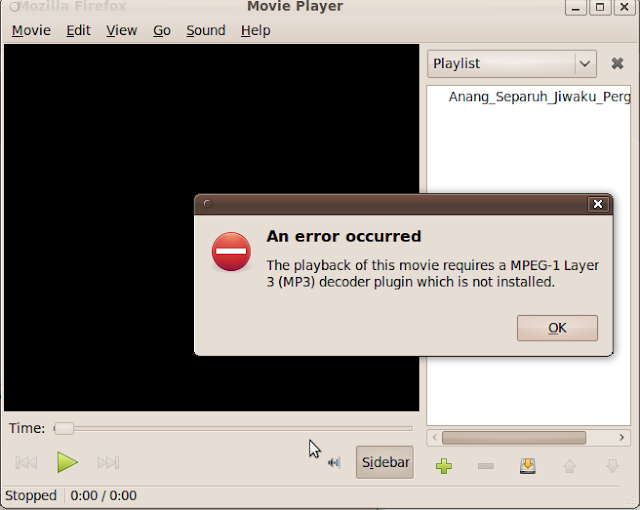 All you need is install the restricted package ( Ubuntu restricted Extras ). Make sure you already update your repository list by command : sudo apt-get update
To install the codecs, use command :
 All you need is install the restricted package ( Ubuntu restricted Extras ). Make sure you already update your repository list by command : sudo apt-get update
To install the codecs, use command :
sudo apt-get install ubuntu-restricted-extras
This is will install mp3 codec, Sun java6 plugin, cabextract, microsoft font, and another library. The size is about 60 Mb. After install it, you can test your mp3 file in your favorite player
Thursday, February 25, 2010
Photoshop CS4, Dreamweaver CS4, Corel Draw X3 on Ubuntu with wine
HOWTO:
Installation currently fails under wine versions later than 1.1.17
Hence, the applications was installed using 1.1.17, not 1.1.20.
Installing has to be done in an earlier wine version, 1.1.17 (or perhaps 1.1.16).
The exceptions being that one more thing is needed for the install to work properly, winetricks ie6 and that I used the 1.1.17 version.
Here follows the shamelessly stolen and edited installation guide:
1. If you have used wine before, please start of with a clean .wine folder. Or bottle you Photoshop by doing every action with a specific wineprefix.
2. Install Wine 1.1.17 from http://wine.budgetdedicated.com/archive/index.html
3. Download winetricks and install necessary libraries. Also make sure you have a decent driver for your graphics card installed.
wget http://www.kegel.com/wine/winetricks
sh winetricks msxml6 gdiplus gecko vcrun2005 ie6
sudo apt-get install msttcorefonts
3. LANG=C before the following command like this:
LANG=C wine Setup.exe
4. To fix the text-layer bug, put atmlib.dll in “~/.wine/drive_c/windows/system 32″. You can download it from several places if you search it on google.
5. Install Wine 1.1.20 from http://wine.budgetdedicated.com/archive/index.html(or your package manager), to fix the menu bar bug.
6. Try running.
You can delete /home/[USER]/.wine/drive_c/Program Files/Common Files/Adobe/Updater6/Adobe_Updater.exe to stop adobe updater (or unselect it during installation way down in the unexpanded list)
I am not sure why, but on my screen I had to change the UI font size(preferences->interface->UI Font size) to "medium" in the application, or else it would look quite crappy. After that, it looked great!
I have only tried with clean .wine-directories, but it might work with used ones as well.
I also had some problems seeing the checkboxes during installation, but it was pretty easy to find them(after some clicking).
I copied this post from appdb.winehq.org . Thank you for Nicklas Börjesson.
I tried it on Ubuntu 8.04, 8.10 and 9.04 ;)
To run coreldraw X3 portable you need to copy mfc40.dll to wine system32 folder.
Installation currently fails under wine versions later than 1.1.17
Hence, the applications was installed using 1.1.17, not 1.1.20.
Installing has to be done in an earlier wine version, 1.1.17 (or perhaps 1.1.16).
The exceptions being that one more thing is needed for the install to work properly, winetricks ie6 and that I used the 1.1.17 version.
Here follows the shamelessly stolen and edited installation guide:
1. If you have used wine before, please start of with a clean .wine folder. Or bottle you Photoshop by doing every action with a specific wineprefix.
2. Install Wine 1.1.17 from http://wine.budgetdedicated.com/archive/index.html
3. Download winetricks and install necessary libraries. Also make sure you have a decent driver for your graphics card installed.
wget http://www.kegel.com/wine/winetricks
sh winetricks msxml6 gdiplus gecko vcrun2005 ie6
sudo apt-get install msttcorefonts
3. LANG=C before the following command like this:
LANG=C wine Setup.exe
4. To fix the text-layer bug, put atmlib.dll in “~/.wine/drive_c/windows/system 32″. You can download it from several places if you search it on google.
5. Install Wine 1.1.20 from http://wine.budgetdedicated.com/archive/index.html(or your package manager), to fix the menu bar bug.
6. Try running.
You can delete /home/[USER]/.wine/drive_c/Program Files/Common Files/Adobe/Updater6/Adobe_Updater.exe to stop adobe updater (or unselect it during installation way down in the unexpanded list)
I am not sure why, but on my screen I had to change the UI font size(preferences->interface->UI Font size) to "medium" in the application, or else it would look quite crappy. After that, it looked great!
I have only tried with clean .wine-directories, but it might work with used ones as well.
I also had some problems seeing the checkboxes during installation, but it was pretty easy to find them(after some clicking).
I copied this post from appdb.winehq.org . Thank you for Nicklas Börjesson.
I tried it on Ubuntu 8.04, 8.10 and 9.04 ;)
To run coreldraw X3 portable you need to copy mfc40.dll to wine system32 folder.
Thursday, January 21, 2010
Squid Proxy Authentication With PHP/MySQL
Many methods to do authentication in Squid, ie basic, ncsa, ntlm, kerberos, radius,.... But what about authenticate a user by looking in a MySQL table? More convenience if the language is PHP, as everybody language in the Web B-). So, after some quick googling results many clues, I picked one here and added some lines for data retrieval from MySQL. Here they are:
#!/usr/bin/php
mysql_connect("localhost","root","password");
if (! defined(STDIN)) {
define("STDIN", fopen("php://stdin", "r"));
}
while (!feof(STDIN)) {
$line = trim(fgets(STDIN));
$fields = explode(' ', $line);
$username = rawurldecode($fields[0]); //1738
$password = rawurldecode($fields[1]); //1738
$db=mysql("auth","select * from user where nama='$username' and passwd='$password'");
if(mysql_num_rows($db)>0){
fwrite(STDOUT, "OK\n");
} else {
// failed miserably
fwrite(STDOUT, "ERR\n");
}
}
?>
Very simple as we write. Next, chmod the script, eg auth.php with execute permission. Copy/move the script into any folder accessible by squid, just place it in /etc/squid is very well.
Edit /etc/squid/squid.conf, add the following lines:
auth_param basic program /etc/squid/auth.php
auth_param basic children 20
auth_param basic realm FKM HotSpot
auth_param basic credentialsttl 2 hours
auth_param basic casesensitive off
And allow only authenticated user:
acl AuthenticatedUsers proxy_auth REQUIRED
http_access allow AuthenticatedUsers
http_access deny all
Restart squid. One major drawback is we have to manually set the browser using the squid address and port, the authentication can't be done in a transparent proxy mode.
#!/usr/bin/php
mysql_connect("localhost","root","password");
if (! defined(STDIN)) {
define("STDIN", fopen("php://stdin", "r"));
}
while (!feof(STDIN)) {
$line = trim(fgets(STDIN));
$fields = explode(' ', $line);
$username = rawurldecode($fields[0]); //1738
$password = rawurldecode($fields[1]); //1738
$db=mysql("auth","select * from user where nama='$username' and passwd='$password'");
if(mysql_num_rows($db)>0){
fwrite(STDOUT, "OK\n");
} else {
// failed miserably
fwrite(STDOUT, "ERR\n");
}
}
?>
Very simple as we write. Next, chmod the script, eg auth.php with execute permission. Copy/move the script into any folder accessible by squid, just place it in /etc/squid is very well.
Edit /etc/squid/squid.conf, add the following lines:
auth_param basic program /etc/squid/auth.php
auth_param basic children 20
auth_param basic realm FKM HotSpot
auth_param basic credentialsttl 2 hours
auth_param basic casesensitive off
And allow only authenticated user:
acl AuthenticatedUsers proxy_auth REQUIRED
http_access allow AuthenticatedUsers
http_access deny all
Restart squid. One major drawback is we have to manually set the browser using the squid address and port, the authentication can't be done in a transparent proxy mode.
Wednesday, January 20, 2010
Squid with MySQL – authentication
Squid is the widly used proxy server. We are using squid as proxy cahcing server with authnetication with PAM.. Now we have replace this squid with PAM authentication with squid with MySQL.
Installation and configuration -
* Download squid_mysql plugin from here…
1] go to directory where you have extracted squid_mysql plugin..
root@indiangnu.org:/home/arun# cd mysql_auth-0.8
root@indiangnu.org:/home/arun/mysql_auth-0.8#
2] Please change the src/mysql_auth.conf as shown below then run make command
root@indiangnu.org:/home/arun/mysql_auth-0.8# make
gcc -I/usr/include -L/usr/lib -c -o src/mysql_auth.o src/mysql_auth.c
gcc -I/usr/include -L/usr/lib -c -o src/confparser.o src/confparser.c
gcc -I/usr/include -L/usr/lib -c -o src/mypasswd.o src/mypasswd.c
gcc -o mysql_auth src/mysql_auth.c src/confparser.c -lmysqlclient -I/usr/include -L/usr/lib
gcc -o mypasswd src/mypasswd.c src/confparser.c -lmysqlclient -I/usr/include -L/usr/lib
root@indiangnu.org:/home/arun/mysql_auth-0.8#
3] Make sure that squid user ie proxy and group shadow is exist.. if they are not exist then check your squid
configuration and set proper permission
root@indiangnu.org:/home/arun/mysql_auth-0.8# install -o proxy -g shadow -m 755 mysql_auth /usr/lib/squid/mysql_auth
root@indiangnu.org:/home/arun/mysql_auth-0.8# install -o root -g root -m 700 mypasswd /usr/local/bin/squid-passwd
root@indiangnu.org:/home/arun/mysql_auth-0.8# make -p /usr/local/squid/etc/
root@indiangnu.org:/home/arun/mysql_auth-0.8#
root@indiangnu.org:/home/arun/mysql_auth-0.8# install -o proxy -g root -m 600 src/mysql_auth.conf /usr/local/squid/etc/mysql_auth.conf
root@indiangnu.org:/home/arun/mysql_auth-0.8# install -o proxy -g root -m 600 src/mysql_auth.conf /usr/local/squid/etc/mysql_auth.conf.default
root@indiangnu.org:/home/arun/mysql_auth-0.8#
4] please update squid.conf file and add this line to use authentication
###########################################
#This is used for MySQL authentication
auth_param basic program /usr/lib/squid/mysql_auth
#For squid with PAM authentication
#auth_param basic program /usr/lib/squid/pam_auth -1
auth_param basic children 5
auth_param basic realm Magnet Internet Authentication
auth_param basic credentialsttl 2 hours
auth_param basic casesensitive off
###########################################
* Add ACL in squid file at proper location
acl password proxy_auth REQUIRED
acl acl_name proxy_auth “/etc/proxy/user.list”
acl allow_sites dstdom_regex -i “/etc/proxy/allow.sites”
acl block_sites dstdom_regex -i “/etc/proxy/block.sites”
* add rule for access/privleges
http_access allow allow_sites
http_access deny block_sites !acl_name
* Configuration file for Squid with MySQL authentication
root@indiangnu.org:/home/arun/mysql_auth-0.8# cat src/mysql_auth.conf
#
# mysql_auth.conf – an mysql authenticator config file
# this is the default name. you can call this by other name,
# but set up it in mysql_auth-source/src/define.h.
#
# comment: first character in line is ‘#’
# empty line (EOL at first) allowed
#
# format of parameters and their values:
# parameter – SPACE(S) and/or TAB(S) – value
#
# IMPORTANT: see the mysql_auth-source/scripts/create_script
# this configuration file made by this script
#
# by Ervin Hegedus, 2002, 2003
# hostname
#
# where is the mysql server – the server hostname or IP address;
# first ‘hostname’ directive, and after space(s) or tab(s) its
# value
#
# default:
###################################
hostname 192.168.1.50
###################################
# user
#
# which user can connect to database
# default:
###################################
user mysql_user
###################################
# password
#
# user’s password for database, that store the accounts
# default:
###################################
password mysql_passwd
###################################
# database
#
# mysql database name, where accounts places are
# default:
###################################
database mysql_auth
###################################
# mysql socket
#
# if mysqld doesn’t use INET socket, you must to set this parameter
# where is the location of mysqld socket; if mysqld use INET socket,
# put NULL value
# default:
###################################
mysqld_socket /var/run/mysqld/mysqld.sock
###################################
# next three directives tells what will the select query,
# like this:
# SELECT * FROM table WHERE user_column LIKE “username” AND password_column LIKE “password”
# where username and password comes from client in HTTP header,
# and user_column and password_column is the columns name in table
# this is an easy way to tune this program to your existing database
# table
#
# the table name, where accounts exist in user-password pair
# default:
###################################
table squid_users
###################################
# user_column
#
# user column name in table
# if you already have a database, what contains user-password
# pair, you can set it here
###################################
user_column user_name
###################################
# password_column
#
# password column name in table
# like user column name above
###################################
password_column user_passwd
###################################
# encrypt_password_form
#
# passwords are stored in encrypted form,
# using mysql internal ‘password()’ function
# this mean, you just storing the passwords encrypted format,
# Squid and clients doesn’t use encrypt form!
# The value is case insensitive (YES/yes or not one of these).
# For backward compatibility, default is NO.
#
###################################
#encrypt_password_form NO
encrypt_password_form YES
###################################
root@indiangnu.org:/home/arun/mysql_auth-0.8#
* SQL dump file for Squid with MySQL.
root@indiangnu.org:/home/arun/mysql_auth-0.8# cat scripts/create_script
DROP DATABASE IF EXISTS mysql_auth;
USE mysql;
DELETE FROM user WHERE User LIKE ‘mysql_user’;
DELETE FROM db WHERE User LIKE ‘mysql_user’;
DELETE FROM tables_priv WHERE User LIKE ‘mysql_user’;
CREATE DATABASE mysql_auth;
USE mysql_auth;
CREATE TABLE squid_users
(user_name VARCHAR(16) NOT NULL PRIMARY KEY,
user_passwd VARCHAR(64) BINARY NOT NULL);
GRANT SELECT,INSERT,UPDATE,DELETE ON mysql_auth.* TO ‘mysql_user@’localhost’ IDENTIFIED BY ‘mysql_passwd’;
GRANT SELECT,INSERT,UPDATE,DELETE ON mysql_auth.* TO ‘mysql_user@’192.168.1.50′ IDENTIFIED BY ‘mysql_passwd’;
root@indiangnu.org:/home/arun/mysql_auth-0.8#
* How to create DB and import this file…
* login with root/admin user of MySQL
root@indiangnu.org:/home/arun/mysql_auth-0.8# mysql -u root -p <>
Enter password:
root@indiangnu.org:/home/arun/mysql_auth-0.8#
root@indiangnu.org:/home/arun/mysql_auth-0.8# mysql -u root -p
Enter password:
Welcome to the MySQL monitor. Commands end with ; or \g.
Your MySQL connection id is 6805 to server version: 5.0.21-Debian_3ubuntu1-log
Type ‘help;’ or ‘\h’ for help. Type ‘\c’ to clear the buffer.
mysql> show databases;
* check output and restart squid service
Installation and configuration -
* Download squid_mysql plugin from here…
1] go to directory where you have extracted squid_mysql plugin..
root@indiangnu.org:/home/arun# cd mysql_auth-0.8
root@indiangnu.org:/home/arun/mysql_auth-0.8#
2] Please change the src/mysql_auth.conf as shown below then run make command
root@indiangnu.org:/home/arun/mysql_auth-0.8# make
gcc -I/usr/include -L/usr/lib -c -o src/mysql_auth.o src/mysql_auth.c
gcc -I/usr/include -L/usr/lib -c -o src/confparser.o src/confparser.c
gcc -I/usr/include -L/usr/lib -c -o src/mypasswd.o src/mypasswd.c
gcc -o mysql_auth src/mysql_auth.c src/confparser.c -lmysqlclient -I/usr/include -L/usr/lib
gcc -o mypasswd src/mypasswd.c src/confparser.c -lmysqlclient -I/usr/include -L/usr/lib
root@indiangnu.org:/home/arun/mysql_auth-0.8#
3] Make sure that squid user ie proxy and group shadow is exist.. if they are not exist then check your squid
configuration and set proper permission
root@indiangnu.org:/home/arun/mysql_auth-0.8# install -o proxy -g shadow -m 755 mysql_auth /usr/lib/squid/mysql_auth
root@indiangnu.org:/home/arun/mysql_auth-0.8# install -o root -g root -m 700 mypasswd /usr/local/bin/squid-passwd
root@indiangnu.org:/home/arun/mysql_auth-0.8# make -p /usr/local/squid/etc/
root@indiangnu.org:/home/arun/mysql_auth-0.8#
root@indiangnu.org:/home/arun/mysql_auth-0.8# install -o proxy -g root -m 600 src/mysql_auth.conf /usr/local/squid/etc/mysql_auth.conf
root@indiangnu.org:/home/arun/mysql_auth-0.8# install -o proxy -g root -m 600 src/mysql_auth.conf /usr/local/squid/etc/mysql_auth.conf.default
root@indiangnu.org:/home/arun/mysql_auth-0.8#
4] please update squid.conf file and add this line to use authentication
###########################################
#This is used for MySQL authentication
auth_param basic program /usr/lib/squid/mysql_auth
#For squid with PAM authentication
#auth_param basic program /usr/lib/squid/pam_auth -1
auth_param basic children 5
auth_param basic realm Magnet Internet Authentication
auth_param basic credentialsttl 2 hours
auth_param basic casesensitive off
###########################################
* Add ACL in squid file at proper location
acl password proxy_auth REQUIRED
acl acl_name proxy_auth “/etc/proxy/user.list”
acl allow_sites dstdom_regex -i “/etc/proxy/allow.sites”
acl block_sites dstdom_regex -i “/etc/proxy/block.sites”
* add rule for access/privleges
http_access allow allow_sites
http_access deny block_sites !acl_name
* Configuration file for Squid with MySQL authentication
root@indiangnu.org:/home/arun/mysql_auth-0.8# cat src/mysql_auth.conf
#
# mysql_auth.conf – an mysql authenticator config file
# this is the default name. you can call this by other name,
# but set up it in mysql_auth-source/src/define.h.
#
# comment: first character in line is ‘#’
# empty line (EOL at first) allowed
#
# format of parameters and their values:
# parameter – SPACE(S) and/or TAB(S) – value
#
# IMPORTANT: see the mysql_auth-source/scripts/create_script
# this configuration file made by this script
#
# by Ervin Hegedus, 2002, 2003
# hostname
#
# where is the mysql server – the server hostname or IP address;
# first ‘hostname’ directive, and after space(s) or tab(s) its
# value
#
# default:
###################################
hostname 192.168.1.50
###################################
# user
#
# which user can connect to database
# default:
###################################
user mysql_user
###################################
# password
#
# user’s password for database, that store the accounts
# default:
###################################
password mysql_passwd
###################################
# database
#
# mysql database name, where accounts places are
# default:
###################################
database mysql_auth
###################################
# mysql socket
#
# if mysqld doesn’t use INET socket, you must to set this parameter
# where is the location of mysqld socket; if mysqld use INET socket,
# put NULL value
# default:
###################################
mysqld_socket /var/run/mysqld/mysqld.sock
###################################
# next three directives tells what will the select query,
# like this:
# SELECT * FROM table WHERE user_column LIKE “username” AND password_column LIKE “password”
# where username and password comes from client in HTTP header,
# and user_column and password_column is the columns name in table
# this is an easy way to tune this program to your existing database
# table
#
# the table name, where accounts exist in user-password pair
# default:
###################################
table squid_users
###################################
# user_column
#
# user column name in table
# if you already have a database, what contains user-password
# pair, you can set it here
###################################
user_column user_name
###################################
# password_column
#
# password column name in table
# like user column name above
###################################
password_column user_passwd
###################################
# encrypt_password_form
#
# passwords are stored in encrypted form,
# using mysql internal ‘password()’ function
# this mean, you just storing the passwords encrypted format,
# Squid and clients doesn’t use encrypt form!
# The value is case insensitive (YES/yes or not one of these).
# For backward compatibility, default is NO.
#
###################################
#encrypt_password_form NO
encrypt_password_form YES
###################################
root@indiangnu.org:/home/arun/mysql_auth-0.8#
* SQL dump file for Squid with MySQL.
root@indiangnu.org:/home/arun/mysql_auth-0.8# cat scripts/create_script
DROP DATABASE IF EXISTS mysql_auth;
USE mysql;
DELETE FROM user WHERE User LIKE ‘mysql_user’;
DELETE FROM db WHERE User LIKE ‘mysql_user’;
DELETE FROM tables_priv WHERE User LIKE ‘mysql_user’;
CREATE DATABASE mysql_auth;
USE mysql_auth;
CREATE TABLE squid_users
(user_name VARCHAR(16) NOT NULL PRIMARY KEY,
user_passwd VARCHAR(64) BINARY NOT NULL);
GRANT SELECT,INSERT,UPDATE,DELETE ON mysql_auth.* TO ‘mysql_user@’localhost’ IDENTIFIED BY ‘mysql_passwd’;
GRANT SELECT,INSERT,UPDATE,DELETE ON mysql_auth.* TO ‘mysql_user@’192.168.1.50′ IDENTIFIED BY ‘mysql_passwd’;
root@indiangnu.org:/home/arun/mysql_auth-0.8#
* How to create DB and import this file…
* login with root/admin user of MySQL
root@indiangnu.org:/home/arun/mysql_auth-0.8# mysql -u root -p <>
Enter password:
root@indiangnu.org:/home/arun/mysql_auth-0.8#
root@indiangnu.org:/home/arun/mysql_auth-0.8# mysql -u root -p
Enter password:
Welcome to the MySQL monitor. Commands end with ; or \g.
Your MySQL connection id is 6805 to server version: 5.0.21-Debian_3ubuntu1-log
Type ‘help;’ or ‘\h’ for help. Type ‘\c’ to clear the buffer.
mysql> show databases;
* check output and restart squid service
Install Oracle di Linux
Instalasi dan Seting Oracle 10g di Debian Lenny
Lakukan Langkah2 Berikut Ini :
1. Install paket-paket yang dibutuhkan
sudo apt-get install build-essential libaio1 rpm lesstif2-dev alien
2. Buat user dan group untuk instalasi oracle :
groupadd oinstall
groupadd dba
groupadd nobody
sudo useradd -g oinstall -G dba,nobody -m oracle -s /bin/bash
3. Set Password untuk user oracle yang baru saja dibuat
passwd oracle
4. Buat direktori untuk instalasi Oracle dan set kepemilikannya ke oracle:oinstall
mkdir -p /u01/app/oracle
chown -R oracle:oinstall /u01/app/oracle
chmod -R 775 /u01/app/oracle
5. Ubah konfigurasi parameter kernel di file /etc/sysctl.conf
gedit /etc/sysctl.conf
tambahkan pada bagian akhir file dengan isi sebagai berikut :
kernel.shmall = 2097152
kernel.shmmax = 2147483648
kernel.shmmni = 4096
kernel.sem = 250 32000 100 128
net.core.rmem_default = 262144
net.core.rmem_max = 262144
net.core.wmem_default = 262144
net.core.wmem_max = 262144
fs.file-max = 65536
net.ipv4.ip_local_port_range = 1024 65000
6. Reboot sistem atau aktifkan hasil perubahan tadi dengan cara
/sbin/sysctl -p
7. Ubah file /etc/security/limits.conf
gedit /etc/security/limits.conf
tambahkan pada bagian akhir file dengan isi sebagai berikut :
soft nproc 2047
hard nproc 16384
soft nofile 1024
hard nofile 65536
8. Buat symbolic links untuk “menipu” Oracle Installer agar Ubuntu terlihat seperti distro berbasis rpm dan sesuai requirement yakni red hat enterprise linux (redhat-3 dan redhat-4), sles atau asianux.
ln -s /usr/bin/awk /bin/awk
ln -s /usr/bin/rpm /bin/rpm
ln -s /lib/libgcc_s.so.1 /lib/libgcc_s.so
ln -s /usr/bin/basename /bin/basename
touch /etc/redhat-release
chmod 666 /etc/redhat-release
echo redhat-4 > /etc/redhat-release
9. Logout dari user aktif saat ini, dan login sebagai user oracle
10. Setelah login sebagai user oracle, buka sebuah teks editor dan edit file /home/oracle/.bashrc
gedit .bashrc
Tambahkan di bagian akhir file dengan baris-baris berikut
export ORACLE_BASE=/u01/app/oracle
export ORACLE_HOME=$ORACLE_BASE/product/10.2.0/db_1
export ORACLE_SID=orcl
export PATH=$PATH:$ORACLE_HOME/bin
11. Kopikan file-file instalasi Oracle ke sebuah direktori misal di /home/oracle/master/ karena instalasi tidak bisa dilakukan melalui CD/DVD
12. Jalankan perintah instalasi berikut, dan ikuti langkah-langkah instalasinya.
./runInstaller -ignoreSysPreReqs
Semoga sukses :).
Setelah Langkah Instalasi Selesai Lakukan Langkah Berikut ini :
1. Logout Komputer anda dan login sebagai oracle
edit file yang ada pada oratab dengan user root
# gedit /etc/oratab
Ubah dari :
orcl:/u01/app/oracle/product/10.2.0/db_1:N
Menjadi :
orcl:/u01/app/oracle/product/10.2.0/db_1:Y
2. Buka konsole oracle :
ketikan dbca
$dbca
Setelah Berhasil
3. Bikin Script Untuk start/restart/shutdown Oracle 10g. dengan nama : orcl-yudebx.sh pada dir /usr/bin dengan user root
# nano /usr/bin/orcl-yudebx.sh
# chmod 755 /usr/bin/orcl-yudebx.sh
Copikan Scripts di Bawah ini :
# Scripts By yudebx.wordpress.com
if [ "start" == $1 ]; then
lsnrctl start
emctl start dbconsole
isqlplusctl start
sqlplus dba1/oracle as sysdba << EOF
startup
EOF
echo “GENERAL REPORTING”
lsnrctl status
emctl status dbconsole
echo “Database Berhasil Start Up !!!”
elif [ "stop" == $1 ]; then
sqlplus dba1/oracle as sysdba << EOF
shutdown immediate
EOF
lsnrctl stop
emctl stop dbconsole
isqlplusctl stop
echo “GENERAL REPORTING”
lsnrctl status
emctl status dbconsole
echo “Database Berhasil Shutdown !!!”
elif [ "restart" == $1 ]; then
sqlplus dba1/oracle as sysdba << EOF
shutdown immediate
EOF
lsnrctl stop
emctl stop dbconsole
isqlplusctl stop
lsnrctl start
emctl start dbconsole
isqlplusctl start
sqlplus dba1/oracle as sysdba << EOF
startup
EOF
echo “GENERAL REPORTING”
lsnrctl status
emctl status dbconsole
echo “Database Berhasil Restarting !!!”
fi
Jika sudah maka save
dan jalankan melalui konsole dengan user oracle :
$ orcl-yudebx.sh start
untuk restart :
$ orcl-yudebx.sh restart
untuk shutdown :
$ orcl-yudebx.sh stop
4. Jika ingin oracle langsung jalan ketika startup (dengan user root):
# gedit /etc/rc.local
su - oracle << EOF
orcl-yudebx.sh start
EOF
5. Cek Oracle Anda :
- melalui terminal
lsnrctl status
emctl status dbconsole
- melalui web browser
iSQL*Plus URL:
http://localhost:5560/isqlplus
iSQL*Plus DBA URL:
http://localhost:5560/isqlplus/dba
Enterprise Manager 10g Database Control URL:
http://localhost:1158/em
auth mySQL di SQUID
Mysql based auth di squid Print E-mail
artikel ini dibuat untuk kamu2 yg ingin membuat authentifikasi squid dan user dan password disimpan di database mysql
asumsi-2:
1. squid-2.4 atau squid-2.5 terinstall dgn baik, dan user dan group yg menjalankan Squid adalah squid (lihat /etc/passwd)
2. mysql (versi berapa aja) terinstall dgn baik
3. RH 7.1 (atau linux yg lainnya
4. gcc, et al
5. admin tidak gila :)
6. yg kurang mohon ditambahkan sendiri
file yg perlu di download:
mysql_auth-0.5.tar.gz (http://freshmeat.net/projects/mysql_auth/)
langkah2 :
1. Ekstrak file mysql_auth
# tar xzpf mysql_auth-0.5.tar.gz
# cd mysql_auth-0.5
2. Cari dan catat lokasi file mysql.h dan libmysqlclient.a
# locate mysql.h
/usr/include/mysql/mysql.h
# locate libmysqlclient.a
/usr/lib/mysql/libmysqlclient.a
3. edit file Makefile
# vi Makefile
ubah baris2 berikut :
a. CFLAGS = -I/usr/local/include -L/usr/local/lib
menjadi
CFLAGS = -I/usr/include/mysql -L/usr/lib/mysql
note : perhatikan yg dicetak tebal di langkah 2 harus sama dengan yg dicetak tebal pada langkah diatas
b. $(INSTALL) -o nobody -g nogroup -m 755 mysql_auth /usr/local/squid/bin/mysql_auth
menjadi
$(INSTALL) -o squid -g squid -m 755 mysql_auth /usr/bin/mysql_auth
c. $(INSTALL) -o nobody -g nogroup -m 600 $(CONF) /usr/local/squid/etc/mysql_auth.conf
menjadi
$(INSTALL) -o squid -g squid -m 600 $(CONF) /etc/mysql_auth.conf
d. $(INSTALL) -o nobody -g nogroup -m 600 $(CONF) /usr/local/squid/etc/mysql_auth.conf.default
menjadi
$(INSTALL) -o squid -g squid -m 600 $(CONF) /etc/mysql_auth.conf.default
catatan : bila user dan group yg menjalankan bukan "squid", misalnya "otong", ganti -o squid -g squid menjadi -o otong -g otong
4. edit src/define
# vi +5 src/define.h
ubah baris
#define CONFIG_FILE "/usr/local/squid/etc/mysql_auth.conf"
menjadi
#define CONFIG_FILE "/etc/mysql_auth.conf"
5. compile dan install
# make
# make install
6. tambahkan database untuk authentifikasi
# cd scripts
# mysql -u root -p <> internet option -> Connections -> LAN Settings
artikel ini dibuat untuk kamu2 yg ingin membuat authentifikasi squid dan user dan password disimpan di database mysql
asumsi-2:
1. squid-2.4 atau squid-2.5 terinstall dgn baik, dan user dan group yg menjalankan Squid adalah squid (lihat /etc/passwd)
2. mysql (versi berapa aja) terinstall dgn baik
3. RH 7.1 (atau linux yg lainnya
4. gcc, et al
5. admin tidak gila :)
6. yg kurang mohon ditambahkan sendiri
file yg perlu di download:
mysql_auth-0.5.tar.gz (http://freshmeat.net/projects/mysql_auth/)
langkah2 :
1. Ekstrak file mysql_auth
# tar xzpf mysql_auth-0.5.tar.gz
# cd mysql_auth-0.5
2. Cari dan catat lokasi file mysql.h dan libmysqlclient.a
# locate mysql.h
/usr/include/mysql/mysql.h
# locate libmysqlclient.a
/usr/lib/mysql/libmysqlclient.a
3. edit file Makefile
# vi Makefile
ubah baris2 berikut :
a. CFLAGS = -I/usr/local/include -L/usr/local/lib
menjadi
CFLAGS = -I/usr/include/mysql -L/usr/lib/mysql
note : perhatikan yg dicetak tebal di langkah 2 harus sama dengan yg dicetak tebal pada langkah diatas
b. $(INSTALL) -o nobody -g nogroup -m 755 mysql_auth /usr/local/squid/bin/mysql_auth
menjadi
$(INSTALL) -o squid -g squid -m 755 mysql_auth /usr/bin/mysql_auth
c. $(INSTALL) -o nobody -g nogroup -m 600 $(CONF) /usr/local/squid/etc/mysql_auth.conf
menjadi
$(INSTALL) -o squid -g squid -m 600 $(CONF) /etc/mysql_auth.conf
d. $(INSTALL) -o nobody -g nogroup -m 600 $(CONF) /usr/local/squid/etc/mysql_auth.conf.default
menjadi
$(INSTALL) -o squid -g squid -m 600 $(CONF) /etc/mysql_auth.conf.default
catatan : bila user dan group yg menjalankan bukan "squid", misalnya "otong", ganti -o squid -g squid menjadi -o otong -g otong
4. edit src/define
# vi +5 src/define.h
ubah baris
#define CONFIG_FILE "/usr/local/squid/etc/mysql_auth.conf"
menjadi
#define CONFIG_FILE "/etc/mysql_auth.conf"
5. compile dan install
# make
# make install
6. tambahkan database untuk authentifikasi
# cd scripts
# mysql -u root -p <> internet option -> Connections -> LAN Settings
error gnome
laddu@laddu:/tmp$ Window manager warning: Failed to contact configuration server; some possible causes are that you need
to enable TCP/IP networking for ORBit, or you have stale NFS locks due to a system crash. See
http://www.gnome.org/projects/gconf/ for
information. (Details -  1: IOR file '/tmp/gconfd-laddu/lock/ior' not opened successfully, no gconfd located: No such file
or directory 2: IOR file '/tmp/gconfd-laddu/lock/ior' not opened successfully, no gconfd located: No such file or
directory)
Window manager warning: Failed to contact configuration server; some possible causes are that you need to enable TCP/IP
networking for ORBit, or you have stale NFS locks due to a system crash. See http://www.gnome.org/projects/gconf/ for
information. (Details -  1: IOR file '/tmp/gconfd-laddu/lock/ior' not opened successfully, no gconfd located: No such file
or directory 2: IOR file '/tmp/gconfd-laddu/lock/ior' not opened successfully, no gconfd located: No such file or
directory)
Window manager warning: Failed to contact configuration server; some possible causes are that you need to enable TCP/IP
networking for ORBit, or you have stale NFS locks due to a system crash. See http://www.gnome.org/projects/gconf/ for
information. (Details -  1: IOR file '/tmp/gconfd-laddu/lock/ior' not opened successfully, no gconfd located: No such file
or directory 2: IOR file '/tmp/gconfd-laddu/lock/ior' not opened successfully, no gconfd located: No such file or
directory)
Window manager error: Unable to open X display :0.0

solution :
cd /tmp
rm -rf *
rm -rf .??*
Thursday, January 7, 2010
Adding Windows Fonts in Linux
Unlike past times, Linux do come with good fonts. And the font rendering can be made better by choosing to antialiase the fonts. But at times you come across a website which has been designed with the windows user in mind. Such websites are best viewed with one of the windows
fonts. If you have windows OS installed on your machine, you can copy the essential fonts from the windows partition to linux and use them to get a better web experience. Here is how you do it.
Method I :
Copy the ttf (True Type Fonts) fonts Ariel, Tahoma, Verdana, Courier New and Times New Roman from the windows partition to the fonts:// location in nautilus.
Method 2 :
Some people who are using Ubuntu have said that they can't do it as normal user. And since Ubuntu does not have a root account, they find difficulty in using su to copy eaither. Such people can do the following:
Create a '.fonts' folder in your home directory and copy the necessary fonts into it. Now you have access to the fonts on a per user basis.
Method 3:
This method can be used to install the fonts system wide if the above two methods do not give satisfactory results.
First find out in which location linux has installed the truetype fonts. It is usually at the location '/usr/share/fonts/truetype/' . But you may also do a search for the same as follows:
# find /usr -iname \*.ttf |head -n 5
Once you know the path of the fonts directory, move to this directory and create a folder there (it can be any name).
# cd /usr/share/fonts/truetype
# mkdir windowsfonts
Note: You need to be logged in as root while doing this.
Next copy all the windows ttf fonts to the windowsfonts directory that was just created.
# cp /media/hda1/windows/Fonts/*.ttf .
Now change the ownership of the fonts as well as make sure they have a right of 644 .
# chown root.root *.ttf
# chmod 644 *.ttf
Now run the command mkfontdir while in the windowsfonts directory.
# mkfontdir
This will create an index of the fonts in the directory. It will also create two files fonts.dir and fonts.cache-1 .
Now moving to the parent directory, edit the file fonts.cache-1 using your favourate editor and append the following line to it.
#File: /usr/share/fonts/truetype/fonts.cache-1
...
"windowsfonts" 0 ".dir"
Lastly run the command fc-cache.
# fc-cache
This command will scan the font directories on the system and build font information cache files for applications using fontconfig for their font handling.
That's it. Now you can have access to windows fonts in all your X applications including firefox and OpenOffice.org.
fonts. If you have windows OS installed on your machine, you can copy the essential fonts from the windows partition to linux and use them to get a better web experience. Here is how you do it.
Method I :
Copy the ttf (True Type Fonts) fonts Ariel, Tahoma, Verdana, Courier New and Times New Roman from the windows partition to the fonts:// location in nautilus.
Method 2 :
Some people who are using Ubuntu have said that they can't do it as normal user. And since Ubuntu does not have a root account, they find difficulty in using su to copy eaither. Such people can do the following:
Create a '.fonts' folder in your home directory and copy the necessary fonts into it. Now you have access to the fonts on a per user basis.
Method 3:
This method can be used to install the fonts system wide if the above two methods do not give satisfactory results.
First find out in which location linux has installed the truetype fonts. It is usually at the location '/usr/share/fonts/truetype/' . But you may also do a search for the same as follows:
# find /usr -iname \*.ttf |head -n 5
Once you know the path of the fonts directory, move to this directory and create a folder there (it can be any name).
# cd /usr/share/fonts/truetype
# mkdir windowsfonts
Note: You need to be logged in as root while doing this.
Next copy all the windows ttf fonts to the windowsfonts directory that was just created.
# cp /media/hda1/windows/Fonts/*.ttf .
Now change the ownership of the fonts as well as make sure they have a right of 644 .
# chown root.root *.ttf
# chmod 644 *.ttf
Now run the command mkfontdir while in the windowsfonts directory.
# mkfontdir
This will create an index of the fonts in the directory. It will also create two files fonts.dir and fonts.cache-1 .
Now moving to the parent directory, edit the file fonts.cache-1 using your favourate editor and append the following line to it.
#File: /usr/share/fonts/truetype/fonts.cache-1
...
"windowsfonts" 0 ".dir"
Lastly run the command fc-cache.
# fc-cache
This command will scan the font directories on the system and build font information cache files for applications using fontconfig for their font handling.
That's it. Now you can have access to windows fonts in all your X applications including firefox and OpenOffice.org.
Monday, January 4, 2010
Install XMMS
XMMS (X Multimedia System) was a very popular audio player for many years, but it was dumped from Debian Lenny and Ubuntu since it uses older GTK+ libraries and it is not maintained any more. It was replaced with the newer Audacious player on both distributions, which you can install by typing sudo apt-get install audacious in a terminal.
However, if you want to compile it from source in Ubuntu 9.04 and 8.10, you can follow the steps below:
1. Install the tools needed for compilation and XMMS dependencies
Open up a terminal and type:
sudo apt-get install build-essential
build-essential is a meta package which depends on tools needed for compilation, like gcc (GNU Compiler Collection). Next, install the development libraries:
sudo apt-get install libgtk1.2-dev libglib1.2-dev
It's recommended to also install libvorbis-dev, for the Ogg Vorbis plugin:
sudo apt-get install libvorbis-dev
2. Download the XMMS source
Get the source from the official website, here, and save it to a location of your choice. Next, make sure the current working directory is the one where you saved the source, then uncompress it using one of the following commands (depending on which file you downloaded, the .tar.gz or the .tar.bz2):
tar -xzf xmms-1.2.11.tar.gz
Or:
tar -xjf xmms-1.2.11.tar.bz2
3. Compile and install XMMS
Change the working directory to xmms-1.2.11 and issue the following commands to configure, compile and install it:
./configure
make
sudo make install
Next, run ldconfig as root:
sudo ldconfig
This should be all. Run XMMS by typing ALT+F2 and entering xmms in the Run dialogue that appears. Notice that XMMS will not be able to play sound if there is another audio or video player running.
To uninstall it, issue the command sudo make uninstall in the same directory from which you installed it.
An alternate way of installing XMMS in Intrepid Ibex, without compiling it, is to follow this short guide. Basically, you will have to add the following two lines to your /etc/apt/sources.list file:
deb http://www.pvv.ntnu.no/~knuta/xmms/intrepid ./
deb-src http://www.pvv.ntnu.no/~knuta/xmms/intrepid ./
Update the package lists and install XMMS using:
sudo apt-get update
sudo apt-get install xmms
However, if you want to compile it from source in Ubuntu 9.04 and 8.10, you can follow the steps below:
1. Install the tools needed for compilation and XMMS dependencies
Open up a terminal and type:
sudo apt-get install build-essential
build-essential is a meta package which depends on tools needed for compilation, like gcc (GNU Compiler Collection). Next, install the development libraries:
sudo apt-get install libgtk1.2-dev libglib1.2-dev
It's recommended to also install libvorbis-dev, for the Ogg Vorbis plugin:
sudo apt-get install libvorbis-dev
2. Download the XMMS source
Get the source from the official website, here, and save it to a location of your choice. Next, make sure the current working directory is the one where you saved the source, then uncompress it using one of the following commands (depending on which file you downloaded, the .tar.gz or the .tar.bz2):
tar -xzf xmms-1.2.11.tar.gz
Or:
tar -xjf xmms-1.2.11.tar.bz2
3. Compile and install XMMS
Change the working directory to xmms-1.2.11 and issue the following commands to configure, compile and install it:
./configure
make
sudo make install
Next, run ldconfig as root:
sudo ldconfig
This should be all. Run XMMS by typing ALT+F2 and entering xmms in the Run dialogue that appears. Notice that XMMS will not be able to play sound if there is another audio or video player running.
To uninstall it, issue the command sudo make uninstall in the same directory from which you installed it.
An alternate way of installing XMMS in Intrepid Ibex, without compiling it, is to follow this short guide. Basically, you will have to add the following two lines to your /etc/apt/sources.list file:
deb http://www.pvv.ntnu.no/~knuta/xmms/intrepid ./
deb-src http://www.pvv.ntnu.no/~knuta/xmms/intrepid ./
Update the package lists and install XMMS using:
sudo apt-get update
sudo apt-get install xmms
Subscribe to:
Posts (Atom)